
To send push messages, you must first get permission from the user and then subscribe their device to a push service. This involves using the JavaScript API to obtain a PushSubscription object, which you then send to your server.
The JavaScript API manages this process straightforwardly. This guide explains the entire flow, including feature detection, requesting permission, and managing the subscription process.
Feature detection
First, check if the browser supports push messaging. You can check for push support with two checks:
- Check for
serviceWorkeron thenavigatorobject. - Check for
PushManageron thewindowobject.
if (!('serviceWorker' in navigator)) {
  // Service Worker isn't supported on this browser, disable or hide UI.
  return;
}

if (!('PushManager' in window)) {
  // Push isn't supported on this browser, disable or hide UI.
  return;
}
While browser support for both service worker and push messaging is increasing, always detect both features and progressively enhance your application.
Register a service worker
After feature detection, you know that service workers and push messaging are supported. Next, register your service worker.
When you register a service worker, you tell the browser the location of your service worker file. The file is a JavaScript file, but the browser grants it access to service worker APIs, including push messaging. Specifically, the browser runs the file in a service worker environment.
To register a service worker, call navigator.serviceWorker.register() and pass the path to your file. For example:
function registerServiceWorker() {
  return navigator.serviceWorker
    .register('/service-worker.js')
    .then(function (registration) {
      console.log('Service worker successfully registered.');
      return registration;
    })
    .catch(function (err) {
      console.error('Unable to register service worker.', err);
    });
}
This function tells the browser the location of your service worker file. Here, the service worker file is at /service-worker.js. After you call register(), the browser performs these steps:
Download the service worker file.
Run the JavaScript.
If the file runs correctly without errors, the promise returned by
register()resolves. If errors occur, the promise rejects.
Note: If register() rejects, check your JavaScript for typos or errors in Chrome DevTools.
When register() resolves, it returns a ServiceWorkerRegistration. You use this registration to access the PushManager API.
PushManager API browser compatibility
' d='M96 183a64 64 0 0 1-23-23L17 64a128 128 0 0 0 111 192l55-96a64 64 0 0 1-87 23Z'/%3E%3Cpath fill='url(%23b)' d='M192 128a64 64 0 0 1-9 32l-55 96A128 128 0 0 0 239 64H128a64 64 0 0 1 64 64Z'/%3E%3Ccircle cx='128' cy='128' r='52' fill='%231a73e8'/%3E%3Cpath fill='url(%23c)' d='M96 73a64 64 0 0 1 32-9h111a128 128 0 0 0-222 0l56 96a64 64 0 0 1 23-87Z'/%3E%3C/svg%3E)
' xlink:href='%23A'%3E%3Cstop offset='.76' stop-opacity='0'/%3E%3Cstop offset='.95' stop-opacity='.5'/%3E%3Cstop offset='1'/%3E%3C/radialGradient%3E%3CradialGradient id='F' cx='2523' cy='4680' r='20243' gradientTransform='matrix(-.03715 .99931 -2.12836 -.07913 13579 3530)' xlink:href='%23A'%3E%3Cstop offset='0' stop-color='%2335c1f1'/%3E%3Cstop offset='.11' stop-color='%2334c1ed'/%3E%3Cstop offset='.23' stop-color='%232fc2df'/%3E%3Cstop offset='.31' stop-color='%232bc3d2'/%3E%3Cstop offset='.67' stop-color='%2336c752'/%3E%3C/radialGradient%3E%3CradialGradient id='G' cx='24247' cy='7758' r='9734' gradientTransform='matrix(.28109 .95968 -.78353 .22949 24510 -16292)' xlink:href='%23A'%3E%3Cstop offset='0' stop-color='%2366eb6e'/%3E%3Cstop offset='1' stop-color='%2366eb6e' stop-opacity='0'/%3E%3C/radialGradient%3E%3Cpath id='H' d='M24105 20053a9345 9345 0 01-1053 472 10202 10202 0 01-3590 646c-4732 0-8855-3255-8855-7432 0-1175 680-2193 1643-2729-4280 180-5380 4640-5380 7253 0 7387 6810 8137 8276 8137 791 0 1984-230 2704-456l130-44a12834 12834 0 006660-5282c220-350-168-757-535-565z'/%3E%3Cpath id='I' d='M11571 25141a7913 7913 0 01-2273-2137 8145 8145 0 01-1514-4740 8093 8093 0 013093-6395 8082 8082 0 011373-859c312-148 846-414 1554-404a3236 3236 0 012569 1297 3184 3184 0 01636 1866c0-21 2446-7960-8005-7960-4390 0-8004 4166-8004 7820 0 2319 538 4170 1212 5604a12833 12833 0 007684 6757 12795 12795 0 003908 610c1414 0 2774-233 4045-656a7575 7575 0 01-6278-803z'/%3E%3Cpath id='J' d='M16231 15886c-80 105-330 250-330 566 0 260 170 512 472 723 1438 1003 4149 868 4156 868a5954 5954 0 003027-839 6147 6147 0 001133-850 6180 6180 0 001910-4437c26-2242-796-3732-1133-4392-2120-4141-6694-6525-11668-6525-7011 0-12703 5635-12798 12620 47-3654 3679-6605 7996-6605 350 0 2346 34 4200 1007 1634 858 2490 1894 3086 2921 618 1067 728 2415 728 2952s-271 1333-780 1990z'/%3E%3Cuse fill='url(%23B)' xlink:href='%23H'/%3E%3Cuse fill='url(%23D)' opacity='.35' xlink:href='%23H'/%3E%3Cuse fill='url(%23C)' xlink:href='%23I'/%3E%3Cuse fill='url(%23E)' opacity='.4' xlink:href='%23I'/%3E%3Cuse fill='url(%23F)' xlink:href='%23J'/%3E%3Cuse fill='url(%23G)' xlink:href='%23J'/%3E%3C/svg%3E)
' gradientUnits='userSpaceOnUse'%3E%3Cstop offset='.2' stop-color='%239059ff' stop-opacity='0'/%3E%3Cstop offset='.3' stop-color='%238c4ff3' stop-opacity='.1'/%3E%3Cstop offset='.8' stop-color='%237716a8' stop-opacity='.5'/%3E%3Cstop offset='1' stop-color='%236e008b' stop-opacity='.6'/%3E%3C/radialGradient%3E%3CradialGradient id='ff-g' cx='239.1' cy='34.6' r='171.6' gradientUnits='userSpaceOnUse'%3E%3Cstop offset='0' stop-color='%23ffe226'/%3E%3Cstop offset='.1' stop-color='%23ffdb27'/%3E%3Cstop offset='.3' stop-color='%23ffc82a'/%3E%3Cstop offset='.5' stop-color='%23ffa930'/%3E%3Cstop offset='.7' stop-color='%23ff7e37'/%3E%3Cstop offset='.8' stop-color='%23ff7139'/%3E%3C/radialGradient%3E%3CradialGradient id='ff-h' cx='374' cy='-74.3' r='732.2' gradientUnits='userSpaceOnUse'%3E%3Cstop offset='.1' stop-color='%23fff44f'/%3E%3Cstop offset='.5' stop-color='%23ff980e'/%3E%3Cstop offset='.6' stop-color='%23ff5634'/%3E%3Cstop offset='.7' stop-color='%23ff3647'/%3E%3Cstop offset='.9' stop-color='%23e31587'/%3E%3C/radialGradient%3E%3CradialGradient id='ff-i' cx='304.6' cy='7.1' r='536.4' gradientTransform='rotate(84 303 4)' gradientUnits='userSpaceOnUse'%3E%3Cstop offset='0' stop-color='%23fff44f'/%3E%3Cstop offset='.1' stop-color='%23ffe847'/%3E%3Cstop offset='.2' stop-color='%23ffc830'/%3E%3Cstop offset='.3' stop-color='%23ff980e'/%3E%3Cstop offset='.4' stop-color='%23ff8b16'/%3E%3Cstop offset='.5' stop-color='%23ff672a'/%3E%3Cstop offset='.6' stop-color='%23ff3647'/%3E%3Cstop offset='.7' stop-color='%23e31587'/%3E%3C/radialGradient%3E%3CradialGradient id='ff-j' cx='235' cy='98.1' r='457.1' gradientUnits='userSpaceOnUse'%3E%3Cstop offset='.1' stop-color='%23fff44f'/%3E%3Cstop offset='.5' stop-color='%23ff980e'/%3E%3Cstop offset='.6' stop-color='%23ff5634'/%3E%3Cstop offset='.7' stop-color='%23ff3647'/%3E%3Cstop offset='.9' stop-color='%23e31587'/%3E%3C/radialGradient%3E%3CradialGradient id='ff-k' cx='355.7' cy='124.9' r='500.3' gradientUnits='userSpaceOnUse'%3E%3Cstop offset='.1' stop-color='%23fff44f'/%3E%3Cstop offset='.2' stop-color='%23ffe141'/%3E%3Cstop offset='.5' stop-color='%23ffaf1e'/%3E%3Cstop offset='.6' stop-color='%23ff980e'/%3E%3C/radialGradient%3E%3ClinearGradient id='ff-a' x1='446.9' y1='76.8' x2='47.9' y2='461.8' gradientUnits='userSpaceOnUse'%3E%3Cstop offset='.1' stop-color='%23fff44f'/%3E%3Cstop offset='.1' stop-color='%23ffe847'/%3E%3Cstop offset='.2' stop-color='%23ffc830'/%3E%3Cstop offset='.4' stop-color='%23ff980e'/%3E%3Cstop offset='.4' stop-color='%23ff8b16'/%3E%3Cstop offset='.5' stop-color='%23ff672a'/%3E%3Cstop offset='.5' stop-color='%23ff3647'/%3E%3Cstop offset='.7' stop-color='%23e31587'/%3E%3C/linearGradient%3E%3ClinearGradient id='ff-l' x1='442.1' y1='74.8' x2='102.6' y2='414.3' gradientUnits='userSpaceOnUse'%3E%3Cstop offset='.2' stop-color='%23fff44f' stop-opacity='.8'/%3E%3Cstop offset='.3' stop-color='%23fff44f' stop-opacity='.6'/%3E%3Cstop offset='.5' stop-color='%23fff44f' stop-opacity='.2'/%3E%3Cstop offset='.6' stop-color='%23fff44f' stop-opacity='0'/%3E%3C/linearGradient%3E%3C/defs%3E%3Cpath d='M479 166c-11-25-32-52-49-60a249 249 0 0 1 25 73c-27-68-73-95-111-155a255 255 0 0 1-8-14 44 44 0 0 1-4-9 1 1 0 0 0 0-1 1 1 0 0 0-1 0c-60 35-81 101-83 134a120 120 0 0 0-66 25 71 71 0 0 0-6-5 111 111 0 0 1-1-58c-25 11-44 29-58 44-9-12-9-52-8-60l-8 4a175 175 0 0 0-24 21 210 210 0 0 0-22 26 203 203 0 0 0-32 73l-1 2-2 15a229 229 0 0 0-4 34v1a240 240 0 0 0 477 40l1-9c5-41 0-84-15-121zM202 355l3 1-3-1zm55-145zm198-31z' fill='url(%23ff-a)'/%3E%3Cpath d='M479 166c-11-25-32-52-49-60 14 26 22 53 25 72v1a207 207 0 0 1-206 279c-113-3-212-87-231-197-3-17 0-26 2-40-2 11-3 14-4 34v1a240 240 0 0 0 477 40l1-9c5-41 0-84-15-121z' fill='url(%23ff-b)'/%3E%3Cpath d='M479 166c-11-25-32-52-49-60 14 26 22 53 25 72v1a207 207 0 0 1-206 279c-113-3-212-87-231-197-3-17 0-26 2-40-2 11-3 14-4 34v1a240 240 0 0 0 477 40l1-9c5-41 0-84-15-121z' fill='url(%23ff-c)'/%3E%3Cpath d='m362 195 1 1a130 130 0 0 0-22-29C266 92 322 5 331 0c-60 35-81 101-83 134l9-1c45 0 84 25 105 62z' fill='url(%23ff-d)'/%3E%3Cpath d='M257 210c-1 6-22 26-29 26-68 0-80 41-80 41 3 35 28 64 57 79l4 2 7 3a107 107 0 0 0 31 6c120 6 143-143 57-186 22-4 45 5 58 14-21-37-60-62-105-62l-9 1a120 120 0 0 0-66 25l17 16c16 16 58 33 58 35z' fill='url(%23ff-e)'/%3E%3Cpath d='M257 210c-1 6-22 26-29 26-68 0-80 41-80 41 3 35 28 64 57 79l4 2 7 3a107 107 0 0 0 31 6c120 6 143-143 57-186 22-4 45 5 58 14-21-37-60-62-105-62l-9 1a120 120 0 0 0-66 25l17 16c16 16 58 33 58 35z' fill='url(%23ff-f)'/%3E%3Cpath d='m171 151 5 3a111 111 0 0 1-1-58c-25 11-44 29-58 44 1 0 36 0 54 11z' fill='url(%23ff-g)'/%3E%3Cpath d='M18 261a242 242 0 0 0 231 197 207 207 0 0 0 206-279c8 56-20 110-64 146-86 71-169 43-186 31l-3-1c-50-24-71-70-67-110-42 0-57-35-57-35s38-28 89-4c46 22 90 4 90 4 0-2-42-19-58-35l-17-16a71 71 0 0 0-6-5l-5-3c-18-11-52-11-54-11-9-12-9-51-8-60l-8 4a175 175 0 0 0-24 21 210 210 0 0 0-22 26 203 203 0 0 0-32 73c0 1-9 38-5 57z' fill='url(%23ff-h)'/%3E%3Cpath d='M341 167a130 130 0 0 1 22 29 46 46 0 0 1 4 3c55 50 26 121 24 126 44-36 72-90 64-146-27-68-73-95-111-155a255 255 0 0 1-8-14 44 44 0 0 1-4-9 1 1 0 0 0 0-1 1 1 0 0 0-1 0c-9 5-65 92 10 167z' fill='url(%23ff-i)'/%3E%3Cpath d='M367 199a46 46 0 0 0-4-3l-1-1c-13-9-36-18-58-15 86 44 63 193-57 187a107 107 0 0 1-31-6 131 131 0 0 1-11-5c17 12 99 39 186-31 2-5 31-76-24-126z' fill='url(%23ff-j)'/%3E%3Cpath d='M148 277s12-41 80-41c7 0 28-20 29-26s-44 18-90-4c-51-24-89 4-89 4s15 35 57 35c-4 40 16 85 67 110l3 1c-29-15-54-44-57-79z' fill='url(%23ff-k)'/%3E%3Cpath d='M479 166c-11-25-32-52-49-60a249 249 0 0 1 25 73c-27-68-73-95-111-155a255 255 0 0 1-8-14 44 44 0 0 1-4-9 1 1 0 0 0 0-1 1 1 0 0 0-1 0c-60 35-81 101-83 134l9-1c45 0 84 25 105 62-13-9-36-18-58-14 86 43 63 192-57 186a107 107 0 0 1-31-6 131 131 0 0 1-11-5l-3-1 3 1c-29-15-54-44-57-79 0 0 12-41 80-41 7 0 28-20 29-26 0-2-42-19-58-35l-17-16a71 71 0 0 0-6-5 111 111 0 0 1-1-58c-25 11-44 29-58 44-9-12-9-52-8-60l-8 4a175 175 0 0 0-24 21 210 210 0 0 0-22 26 203 203 0 0 0-32 73l-1 2-2 15a279 279 0 0 0-4 34v1a240 240 0 0 0 477 40l1-9c5-41 0-84-15-121zm-24 13z' fill='url(%23ff-l)'/%3E%3C/svg%3E)
' xlink:href='%23s-b'%3E%3Cstop offset='0' stop-color='%2324a5f3' stop-opacity='0' /%3E%3Cstop offset='1' stop-color='%231e8ceb' /%3E%3C/radialGradient%3E%3CradialGradient id='s-j' cx='109.3' cy='13.8' r='93.1' gradientTransform='matrix(-.02 1.1 -1.04 -.02 137 -115)' xlink:href='%23s-b'%3E%3Cstop offset='0' stop-opacity='0' /%3E%3Cstop offset='1' stop-color='%235488d6' stop-opacity='0' /%3E%3Cstop offset='1' stop-color='%235d96eb' /%3E%3C/radialGradient%3E%3C/defs%3E%3Crect width='220' height='220' x='22' y='-107' fill='url(%23s-a)' ry='49' transform='matrix(.57 0 0 .57 187 256)' /%3E%3Cg transform='translate(194 190)'%3E%3Ccircle cx='67.8' cy='67.7' fill='url(%23s-c)' paint-order='stroke fill markers' r='54' /%3E%3Ccircle cx='-69.9' cy='69.3' fill='url(%23s-i)' transform='translate(138 -2)' r='54' /%3E%3C/g%3E%3Cellipse cx='120' cy='14.2' fill='url(%23s-j)' rx='93.1' ry='93.7' transform='matrix(.58 0 0 .58 192 250)' /%3E%3Cg transform='matrix(.58 0 0 .57 197 182)'%3E%3Cpath fill='%23cac7c8' d='M46 192h1l72-48-7-9-66 57Z' /%3E%3Cpath fill='%23fbfffc' d='M46 191v1l66-57-7-9-59 65Z' /%3E%3Cpath fill='url(%23s-d)' d='m119 144-7-9 66-57-59 66Z' /%3E%3Cpath fill='%23fb645c' d='m105 126 7 9 66-57-1-1-72 49Z' /%3E%3C/g%3E%3Cpath stroke='%23fff' stroke-linecap='round' stroke-miterlimit='1' stroke-width='1.3' d='m287 278 3-2m-12-17 8-2m-8-3h4m-4-13 8 2m-8 3h4m-1-13 7 3m-4-11 7 4m-2-11 6 6m0-12 6 7m1-11 4 6m4-10 3 7m5-9 2 7m15-7-1 7m10-5-3 7m11-4-4 7m11-2-5 6m16 7-7 4m10 4-7 3m10 6-8 1m8 16-8-2m5 10-7-3m4 11-7-4m2 11-6-5m0 11-5-6m-2 11-4-7m-4 11-3-8m-6 10-1-8m-16 8 2-8m-10 5 3-7m-11 4 4-7m-11 2 5-6m-8 3 3-3m4 8 2-3m5 8 2-4m6 7 1-4m8 5v-4m8 4v-4m9 3-1-4m9 1-2-4m9 0-2-4m9-2-3-3m8-4-3-2m8-5-4-2m7-6-4-1m5-8h-4m4-8h-4m3-9-4 1m1-9-4 2m-1-9-3 2m-2-9-3 3m-4-8-2 3m-5-8-2 4m-6-6-1 3m-8-5v4m-8-4v4m-9-2 1 3m-9 0 2 3m-9 1 2 3m-9 2 3 3m-8 4 3 2m-8 5 4 2m-7 6 4 1m-4 25 4-1m-2 5 7-3m-6 7 4-2m-2 6 7-4m-13-21h8m41-41v-8m0 99v-8m49-42h-8' transform='translate(-65 8)' /%3E%3C/svg%3E)
Requesting permission
After registering your service worker and obtaining permission, get permission from the user to send push messages.
The API for getting permission is simple. However, the API recently changed from taking a callback to returning a Promise. Because you cannot determine which API version the browser implements, you must implement and handle both versions.
function askPermission() {
  return new Promise(function (resolve, reject) {
    const permissionResult = Notification.requestPermission(function (result) {
      resolve(result);
    });

    if (permissionResult) {
      permissionResult.then(resolve, reject);
    }
  }).then(function (permissionResult) {
    if (permissionResult !== 'granted') {
      throw new Error("We weren't granted permission.");
    }
  });
}
In the preceding code, the call to Notification.requestPermission() displays a prompt to the user:

After the user interacts with the permission prompt by selecting Allow, Block, or closing it, you receive the result as a string: 'granted', 'default', or 'denied'.
In the sample code, the promise returned by askPermission() resolves if permission is granted; otherwise, it throws an error and the promise rejects.
Handle the edge case where the user clicks the Block button. If this occurs, your web app cannot ask the user for permission again. The user must manually unblock your app by changing its permission state in a settings panel. Carefully consider when and how to ask for permission, because if a user clicks Block, reversing that decision is not easy.
Most users grant permission if they understand why the app requests it.
This document discusses how some popular sites ask for permission later in this document.
Subscribe a user with PushManager
After registering your service worker and obtaining permission, you can subscribe a user by calling registration.pushManager.subscribe().
function subscribeUserToPush() {
  return navigator.serviceWorker
    .register('/service-worker.js')
    .then(function (registration) {
      const subscribeOptions = {
        userVisibleOnly: true,
        applicationServerKey: urlBase64ToUint8Array(
          'BEl62iUYgUivxIkv69yViEuiBIa-Ib9-SkvMeAtA3LFgDzkrxZJjSgSnfckjBJuBkr3qBUYIHBQFLXYp5Nksh8U',
        ),
      };

      return registration.pushManager.subscribe(subscribeOptions);
    })
    .then(function (pushSubscription) {
      console.log(
        'Received PushSubscription: ',
        JSON.stringify(pushSubscription),
      );
      return pushSubscription;
    });
}
When you call the subscribe() method, you pass an options object that consists of required and optional parameters.
This section describes the options you can pass.
userVisibleOnly options
When push messaging was first added to browsers, developers were uncertain about sending push messages without displaying a notification. This is commonly referred to as silent push because the user does not know that an event occurred in the background.
The concern was that developers could track a user's location continuously without the user's knowledge.
To avoid this scenario and allow spec authors to consider how best to support this feature, the userVisibleOnly option was added. Passing a value of true is a symbolic agreement with the browser that the web app displays a notification every time it receives a push message (that is, no silent push).
You must pass a value of true. If you do not include the userVisibleOnly key or pass false, you receive the following error:
Chrome currently only supports the Push API for subscriptions that will result
in user-visible messages. You can indicate this by calling
`pushManager.subscribe({userVisibleOnly: true})` instead. See
[https://goo.gl/yqv4Q4](https://goo.gl/yqv4Q4) for more details.
Chrome supports the Push API only for subscriptions that result in user-visible messages. Indicate this by calling pushManager.subscribe({userVisibleOnly: true}). For more information, see https://goo.gl/yqv4Q4.
It appears that blanket silent push will not be implemented in Chrome. Instead, spec authors are exploring a budget API that lets web apps send a certain number of silent push messages based on web app usage.
applicationServerKey option
This document previously mentioned application server keys. A push service uses application server keys to identify the application subscribing a user and to ensure that the same application messages that user.
Application server keys are a public and private key pair that are unique to your application. Keep the private key secret to your application, and share the public key freely.
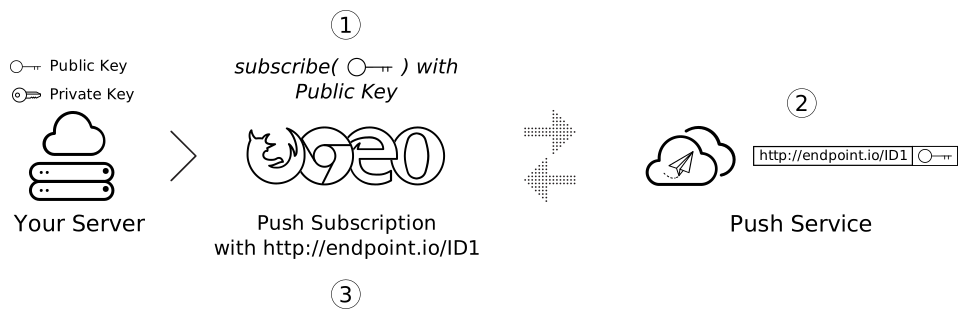
The applicationServerKey option passed into the subscribe() call is your application's public key. The browser passes this key to a push service when subscribing the user, which enables the push service to tie your application's public key to the user's PushSubscription.
The following diagram illustrates these steps.
- Load your web app in a browser and call
subscribe(), passing your public application server key. - The browser then makes a network request to a push service, which generates an endpoint, associates this endpoint with your application's public key, and returns the endpoint to the browser.
- The browser adds this endpoint to the
PushSubscription, which thesubscribe()promise returns.
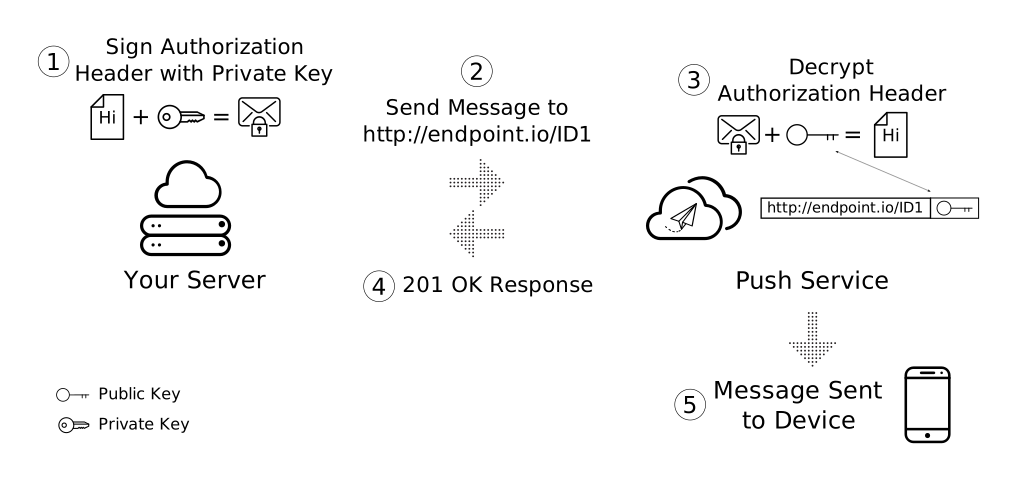
When you send a push message, create an Authorization header that contains information signed with your application server's private key. When the push service receives a request to send a push message, it validates this signed Authorization header by looking up the public key linked to the endpoint receiving the request. If the signature is valid, the push service knows that the request came from the application server with the matching private key. This is a security measure that prevents others from sending messages to your application's users.
Technically, the applicationServerKey is optional. However, the simplest implementation on Chrome requires it, and other browsers might require it in the future. It's optional on Firefox.
The VAPID spec defines the application server key. When you see references to application server keys or VAPID keys, remember that they are the same.
Create application server keys
You can create a public and private set of application server keys by visiting web-push-codelab.glitch.me or by using the web-push command line to generate keys as follows:
    $ npm install -g web-push
    $ web-push generate-vapid-keys
Create these keys only once for your application, and ensure you keep the private key private.
Permissions and subscribe()
Calling subscribe() has one side effect. If your web app does not have permission to show notifications when you call subscribe(), the browser requests the permissions for you. This is useful if your UI works with this flow, but if you want more control (which most developers do), use the Notification.requestPermission() API that this document discussed earlier.
PushSubscription overview
You call subscribe(), pass options, and receive a promise that resolves to a PushSubscription. For example:
function subscribeUserToPush() {
  return navigator.serviceWorker
    .register('/service-worker.js')
    .then(function (registration) {
      const subscribeOptions = {
        userVisibleOnly: true,
        applicationServerKey: urlBase64ToUint8Array(
          'BEl62iUYgUivxIkv69yViEuiBIa-Ib9-SkvMeAtA3LFgDzkrxZJjSgSnfckjBJuBkr3qBUYIHBQFLXYp5Nksh8U',
        ),
      };

      return registration.pushManager.subscribe(subscribeOptions);
    })
    .then(function (pushSubscription) {
      console.log(
        'Received PushSubscription: ',
        JSON.stringify(pushSubscription),
      );
      return pushSubscription;
    });
}
The PushSubscription object contains all the information required to send push messages to that user. If you print the contents using JSON.stringify(), you see the following:
    {
      "endpoint": "https://some.pushservice.com/something-unique",
      "keys": {
        "p256dh":
    "BIPUL12DLfytvTajnryr2PRdAgXS3HGKiLqndGcJGabyhHheJYlNGCeXl1dn18gSJ1WAkAPIxr4gK0_dQds4yiI=",
        "auth":"FPssNDTKnInHVndSTdbKFw=="
      }
    }
The endpoint is the push service's URL. To trigger a push message, make a POST request to this URL.
The keys object contains the values used to encrypt message data sent with a push message. (This document discusses message encryption later.)
Send a subscription to your server
After you have a push subscription, send it to your server. You determine how to send it, but a tip is to use JSON.stringify() to extract all necessary data from the subscription object. Alternatively, you can manually assemble the same result, for example:
const subscriptionObject = {
  endpoint: pushSubscription.endpoint,
  keys: {
    p256dh: pushSubscription.getKeys('p256dh'),
    auth: pushSubscription.getKeys('auth'),
  },
};

// The above is the same output as:

const subscriptionObjectToo = JSON.stringify(pushSubscription);
To send the subscription from the web page, use the following:
function sendSubscriptionToBackEnd(subscription) {
  return fetch('/api/save-subscription/', {
    method: 'POST',
    headers: {
      'Content-Type': 'application/json',
    },
    body: JSON.stringify(subscription),
  })
    .then(function (response) {
      if (!response.ok) {
        throw new Error('Bad status code from server.');
      }

      return response.json();
    })
    .then(function (responseData) {
      if (!(responseData.data && responseData.data.success)) {
        throw new Error('Bad response from server.');
      }
    });
}
The Node.js server receives this request and saves the data to a database for later use.
app.post('/api/save-subscription/', function (req, res) {
  if (!isValidSaveRequest(req, res)) {
    return;
  }

  return saveSubscriptionToDatabase(req.body)
    .then(function (subscriptionId) {
      res.setHeader('Content-Type', 'application/json');
      res.send(JSON.stringify({data: {success: true}}));
    })
    .catch(function (err) {
      res.status(500);
      res.setHeader('Content-Type', 'application/json');
      res.send(
        JSON.stringify({
          error: {
            id: 'unable-to-save-subscription',
            message:
              'The subscription was received but we were unable to save it to our database.',
          },
        }),
      );
    });
});
With the PushSubscription details on your server, you can send your user a message at any time.
Resubscribe regularly to prevent expiration
When subscribing to push notifications, you often receive a PushSubscription.expirationTime of null. In theory, this means the subscription never expires. (In contrast, a DOMHighResTimeStamp indicates the exact expiration time.) In practice, however, browsers commonly let subscriptions expire. For example, this can occur if no push notifications are received for a long time, or if the browser detects the user is not using an app that has push notification permission. One pattern to prevent this is to resubscribe the user upon each received notification, as the following snippet shows. This requires you to send notifications frequently enough to prevent the browser from auto-expiring the subscription. You should carefully weigh the advantages and disadvantages of legitimate notification needs against involuntarily spamming the user solely to prevent subscription expiration. Ultimately, you should not try to circumvent the browser's efforts to protect the user from long-forgotten notification subscriptions.
/* In the Service Worker. */

self.addEventListener('push', function(event) {
  console.log('Received a push message', event);

  // Display notification or handle data
  // Example: show a notification
  const title = 'New Notification';
  const body = 'You have new updates!';
  const icon = '/images/icon.png';
  const tag = 'simple-push-demo-notification-tag';

  event.waitUntil(
    self.registration.showNotification(title, {
      body: body,
      icon: icon,
      tag: tag
    })
  );

  // Attempt to resubscribe after receiving a notification
  event.waitUntil(resubscribeToPush());
});

function resubscribeToPush() {
  return self.registration.pushManager.getSubscription()
    .then(function(subscription) {
      if (subscription) {
        return subscription.unsubscribe();
      }
    })
    .then(function() {
      return self.registration.pushManager.subscribe({
        userVisibleOnly: true,
        applicationServerKey: urlBase64ToUint8Array('YOUR_PUBLIC_VAPID_KEY_HERE')
      });
    })
    .then(function(subscription) {
      console.log('Resubscribed to push notifications:', subscription);
      // Optionally, send new subscription details to your server
    })
    .catch(function(error) {
      console.error('Failed to resubscribe:', error);
    });
}
Frequently asked questions
Here are some common questions:
Can you change the push service a browser uses?
No, the browser selects the push service. As this document discussed with the subscribe() call, the browser makes network requests to the push service to retrieve the details that make up the PushSubscription.
Do different push services use different APIs?
All push services expect the same API.
This common API, called the Web Push Protocol, describes the network request your application makes to trigger a push message.
If you subscribe a user on their desktop, are they subscribed on their phone as well?
No. A user must register for push messaging on each browser where they want to receive messages. This also requires the user to grant permission on each device.
Next steps
- Web Push Notification overview
- How push messaging works
- Subscribe a user
- Permission user experience
- Send messages with web push libraries
- Web Push Protocol
- Handle push events
- Display a notification
- Notification behavior
- Common notification patterns
- Push notifications frequently asked questions
- Common issues and reporting bugs