


到目前为止,我们已经了解了可改变通知外观的选项。还有一些选项可以改变通知的行为。
默认情况下,仅使用视觉选项调用 showNotification() 会产生以下行为:
- 点击通知后,应用没有任何反应。
- 每条新通知都会逐一显示。浏览器不会以任何方式收起通知。
- 平台可能会播放声音或让用户设备振动(具体取决于平台)。
- 在某些平台上,通知会在短时间内消失,而在其他平台上,除非用户与通知互动,否则通知会一直显示。(例如,比较 Android 和桌面设备上的通知。)
在本部分中,我们将了解如何仅使用选项来更改这些默认行为。这些功能相对容易实现和利用。
通知点击事件
当用户点击通知时,默认行为是不执行任何操作。它甚至不会关闭或移除通知。
通知点击的常见做法是关闭通知并执行一些其他逻辑(即打开窗口或对应用进行一些 API 调用)。
为此,您需要向 Service Worker 添加 'notificationclick' 事件监听器。每当用户点击通知时,系统都会调用此方法。
self.addEventListener('notificationclick', (event) => {
  const clickedNotification = event.notification;
  clickedNotification.close();

  // Do something as the result of the notification click
  const promiseChain = doSomething();
  event.waitUntil(promiseChain);
});
如本例所示,您可以通过 event.notification 访问被点击的通知。通过此对象,您可以访问通知的属性和方法。在这种情况下,您需要调用其 close() 方法并执行其他工作。
操作
借助操作,您可以与用户建立更深层次的互动,而不仅仅是点击通知。
按钮
在上一部分中,您了解了如何在调用 showNotification() 时定义操作按钮:
const title = 'Actions Notification';

const options = {
  actions: [
    {
      action: 'coffee-action',
      title: 'Coffee',
      type: 'button',
      icon: '/images/demos/action-1-128x128.png',
    },
    {
      action: 'doughnut-action',
      type: 'button',
      title: 'Doughnut',
      icon: '/images/demos/action-2-128x128.png',
    },
    {
      action: 'gramophone-action',
      type: 'button',
      title: 'Gramophone',
      icon: '/images/demos/action-3-128x128.png',
    },
    {
      action: 'atom-action',
      type: 'button',
      title: 'Atom',
      icon: '/images/demos/action-4-128x128.png',
    },
  ],
};

registration.showNotification(title, options);
如果用户点击了操作按钮,请检查 noticationclick 事件中的 event.action 值,以确定用户点击了哪个操作按钮。
event.action 将包含在选项中设置的 action 值。在上面的示例中,event.action 值将是以下值之一:'coffee-action'、'doughnut-action'、'gramophone-action' 或 'atom-action'。
这样,我们就可以检测通知点击或操作点击,如下所示:
self.addEventListener('notificationclick', (event) => {
  if (!event.action) {
    // Was a normal notification click
    console.log('Notification Click.');
    return;
  }

  switch (event.action) {
    case 'coffee-action':
      console.log("User ❤️️'s coffee.");
      break;
    case 'doughnut-action':
      console.log("User ❤️️'s doughnuts.");
      break;
    case 'gramophone-action':
      console.log("User ❤️️'s music.");
      break;
    case 'atom-action':
      console.log("User ❤️️'s science.");
      break;
    default:
      console.log(`Unknown action clicked: '${event.action}'`);
      break;
  }
});
内嵌回复
此外,在上一部分中,您已了解如何向通知添加内嵌回复:
const title = 'Poll';

const options = {
  body: 'Do you like this photo?',
  image: '/images/demos/cat-image.jpg',
  icon: '/images/demos/icon-512x512.png',
  badge: '/images/demos/badge-128x128.png',
  actions: [
    {
      action: 'yes',
      type: 'button',
      title: '👍 Yes',
    },
    {
      action: 'no',
      type: 'text',
      title: '👎 No (explain why)',
      placeholder: 'Type your explanation here',
    },
  ],
};

registration.showNotification(title, options);
event.reply 将包含用户在输入字段中输入的值:
self.addEventListener('notificationclick', (event) => {
  const reply = event.reply;

  // Do something with the user's reply
  const promiseChain = doSomething(reply);
  event.waitUntil(promiseChain);
});
标记
tag 选项本质上是一个字符串 ID,用于将通知“分组”在一起,以便轻松确定如何向用户显示多条通知。举个例子,最容易说明这一点。
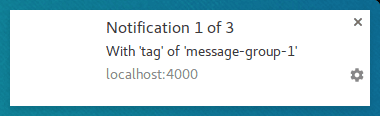
我们来显示一条通知,并为其添加一个标记 'message-group-1'。我们将使用以下代码显示通知:
const title = 'Notification 1 of 3';

const options = {
  body: "With 'tag' of 'message-group-1'",
  tag: 'message-group-1',
};

registration.showNotification(title, options);
这将显示我们的第一个通知。
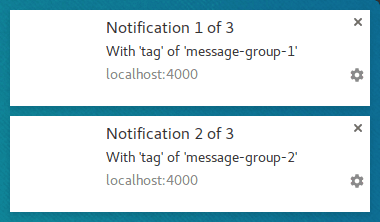
让我们显示第二个通知,其新标记为 'message-group-2',如下所示:
const title = 'Notification 2 of 3';

const options = {
  body: "With 'tag' of 'message-group-2'",
  tag: 'message-group-2',
};

registration.showNotification(title, options);
这将向用户显示第二条通知。
现在,我们来显示第三条通知,但重复使用第一条通知的标记 'message-group-1'。这样做会关闭第一条通知,并将其替换为我们的新通知。
const title = 'Notification 3 of 3';

const options = {
  body: "With 'tag' of 'message-group-1'",
  tag: 'message-group-1',
};

registration.showNotification(title, options);
现在,即使 showNotification() 被调用了三次,我们也只有两条通知。
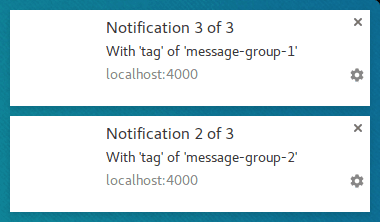
tag 选项只是对消息进行分组的一种方式,以便在当前显示的任何旧通知与新通知具有相同标记时将其关闭。
使用 tag 的一个细微之处在于,当它替换通知时,会在不发出声音或振动的情况下执行此操作。
这正是 renotify 选项的用武之地。
重新通知
在撰写本文时,这主要适用于移动设备。设置此选项后,新通知会振动并播放系统提示音。
在某些情况下,您可能希望替换通知能够通知用户,而不是静默更新。聊天应用就是一个很好的例子。在这种情况下,您应将 tag 和 renotify 设置为 true。
const title = 'Notification 2 of 2';

const options = {
  tag: 'renotify',
  renotify: true,
};

registration.showNotification(title, options);
静音
此选项允许您显示新通知,但会阻止默认的振动、声音和开启设备显示屏行为。
如果您的通知不需要用户立即关注,则此选项是理想之选。
const title = 'Silent Notification';

const options = {
  silent: true,
};

registration.showNotification(title, options);
需要互动
桌面版 Chrome 会在设定的时间段内显示通知,然后将其隐藏。Android 版 Chrome 没有此行为。通知会一直显示,直到用户与其互动。
如需强制通知保持可见,直到用户与其互动,请添加 requireInteraction 选项。这样,通知就会一直显示,直到用户关闭或点击通知。
const title = 'Require Interaction Notification';

const options = {
  requireInteraction: true,
};

registration.showNotification(title, options);
请谨慎使用此选项。显示通知并强制用户停止正在执行的操作来关闭通知可能会让用户感到沮丧。
在下一部分中,我们将了解 Web 上用于管理通知和执行操作(例如在点击通知时打开页面)的一些常见模式。
下一步做什么
- Web 推送通知概览
- 推送的工作原理
- 为用户订阅
- 权限用户体验
- 使用 Web 推送库发送消息
- Web 推送协议
- 处理推送事件
- 显示通知
- 通知行为
- 常见通知模式
- 推送通知常见问题解答
- 常见问题和报告错误