

试用新的 Lighthouse API,在整个用户体验流程中衡量性能和最佳实践。

Lighthouse 是一款出色的工具,可在初始网页加载期间测试性能和最佳实践。不过,传统上很难使用 Lighthouse 分析网页生命周期的其他方面,例如:
- 使用温缓存加载网页
- 已激活 Service Worker 的网页
- 考虑潜在的用户互动
这意味着 Lighthouse 可能会遗漏重要信息。Core Web Vitals 基于所有网页加载,而不仅仅是缓存为空的网页加载。此外,在网页打开的整个过程中,都可以衡量 Cumulative Layout Shift (CLS) 等指标。
Lighthouse 推出了一款新的用户体验流程 API,可在网页生命周期内的任何时间点进行实验室测试。Puppeteer 用于编写网页加载脚本并触发合成用户互动,而 Lighthouse 可以通过多种方式调用,以在这些互动期间捕获关键数据洞见。这意味着,您可以在网页加载期间以及与网页互动期间衡量性能。无障碍检查可以在 CI 中运行,不仅在初始视图中运行,还可以在结账流程中深入运行,以确保没有任何功能退化。
现在,几乎所有为确保用户体验流程正常运行而编写的 Puppeteer 脚本都可以在任何时间点插入 Lighthouse,以衡量整个流程的性能和最佳实践。本教程将介绍可衡量用户体验流程不同部分的新 Lighthouse 模式:导航、快照和时间跨度。
设置
用户体验流程 API 仍处于预览阶段,但现在已可在 Lighthouse 中使用。如需试用以下演示,您需要使用 Node 14 或更高版本。创建一个空目录,并在其中运行:
# Default to ES modules.
echo '{"type": "module"}' > package.json

# Init npm project without the wizard.
npm init -y

# Dependencies for these examples.
npm install lighthouse puppeteer open
导航
新的 Lighthouse“导航”模式实际上是为(到目前为止)标准的 Lighthouse 行为命名:分析网页的冷加载。此模式可用于监控网页加载性能,但用户体验流程也可能带来新的数据洞见。
如需通过脚本让 Lighthouse 捕获网页加载过程,请执行以下操作:
- 使用 puppeteer 打开浏览器。
- 启动 Lighthouse 用户体验流程。
- 前往目标网址。
import fs from 'fs';
import open from 'open';
import puppeteer from 'puppeteer';
import {startFlow} from 'lighthouse/lighthouse-core/fraggle-rock/api.js';

async function captureReport() {
  const browser = await puppeteer.launch({headless: false});
  const page = await browser.newPage();

  const flow = await startFlow(page, {name: 'Single Navigation'});
  await flow.navigate('https://web.dev/performance-scoring/');

  await browser.close();

  const report = await flow.generateReport();
  fs.writeFileSync('flow.report.html', report);
  open('flow.report.html', {wait: false});
}

captureReport();
这是最简单的流程。打开后,报告会显示仅包含该单个步骤的摘要视图。点击该步骤将显示该导航的传统 Lighthouse 报告。
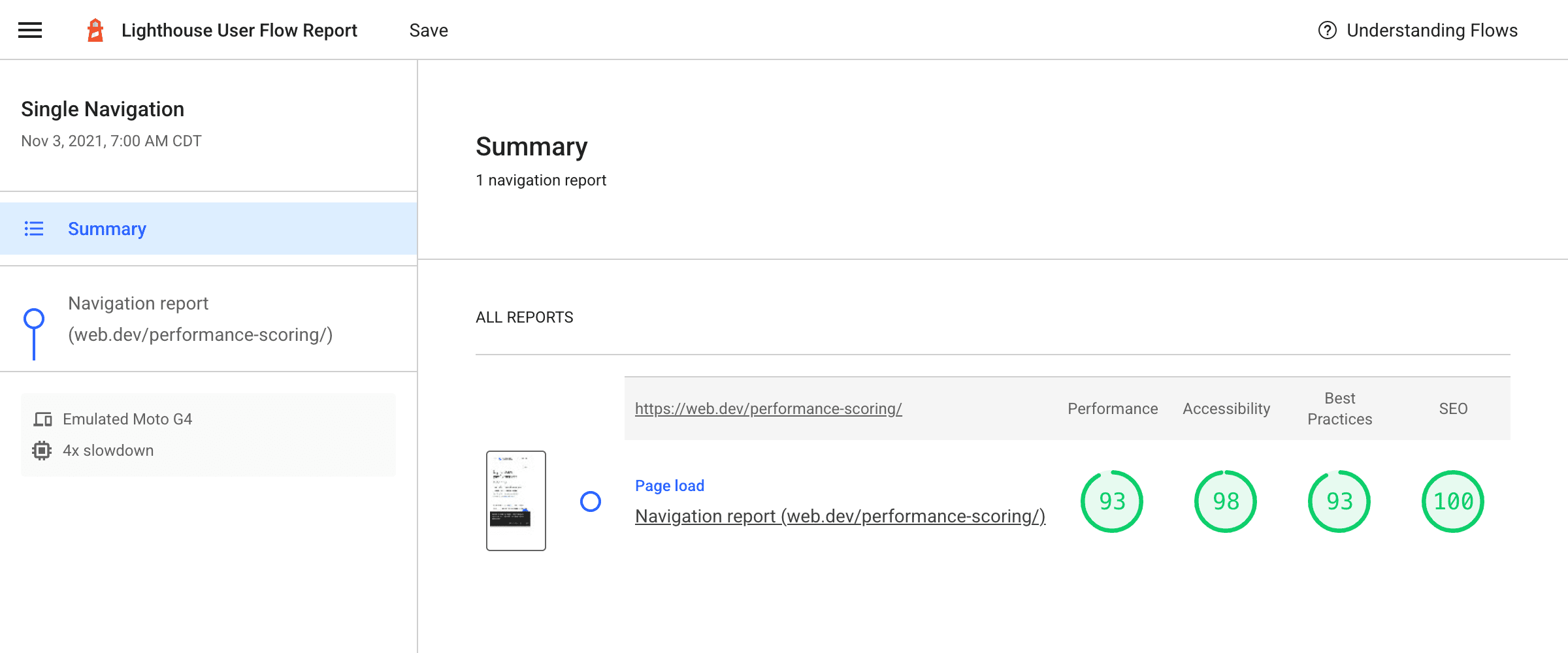
与 Lighthouse 的典型情况一样,此页面在加载时会先清除所有缓存或本地存储,但访问网站的真实用户会混合访问冷缓存和热缓存,并且像这样的冷加载与用户返回到仍有热缓存的页面之间可能存在很大的性能差异。
捕获温启动
您还可以向此脚本添加第二次导航,这次停用 Lighthouse 在导航中默认执行的缓存和存储空间清除操作。下一个示例会在 web.dev 本身加载一篇文章,看看它从缓存中受益多少:
async function captureReport() {
  const browser = await puppeteer.launch({headless: false});
  const page = await browser.newPage();

  const testUrl = 'https://web.dev/performance-scoring/';
  const flow = await startFlow(page, {name: 'Cold and warm navigations'});
  await flow.navigate(testUrl, {
    stepName: 'Cold navigation'
  });
  await flow.navigate(testUrl, {
    stepName: 'Warm navigation',
    configContext: {
      settingsOverrides: {disableStorageReset: true},
    },
  });

  await browser.close();

  const report = await flow.generateReport();
  fs.writeFileSync('flow.report.html', report);
  open('flow.report.html', {wait: false});
}

captureReport();
生成的流程报告如下所示:
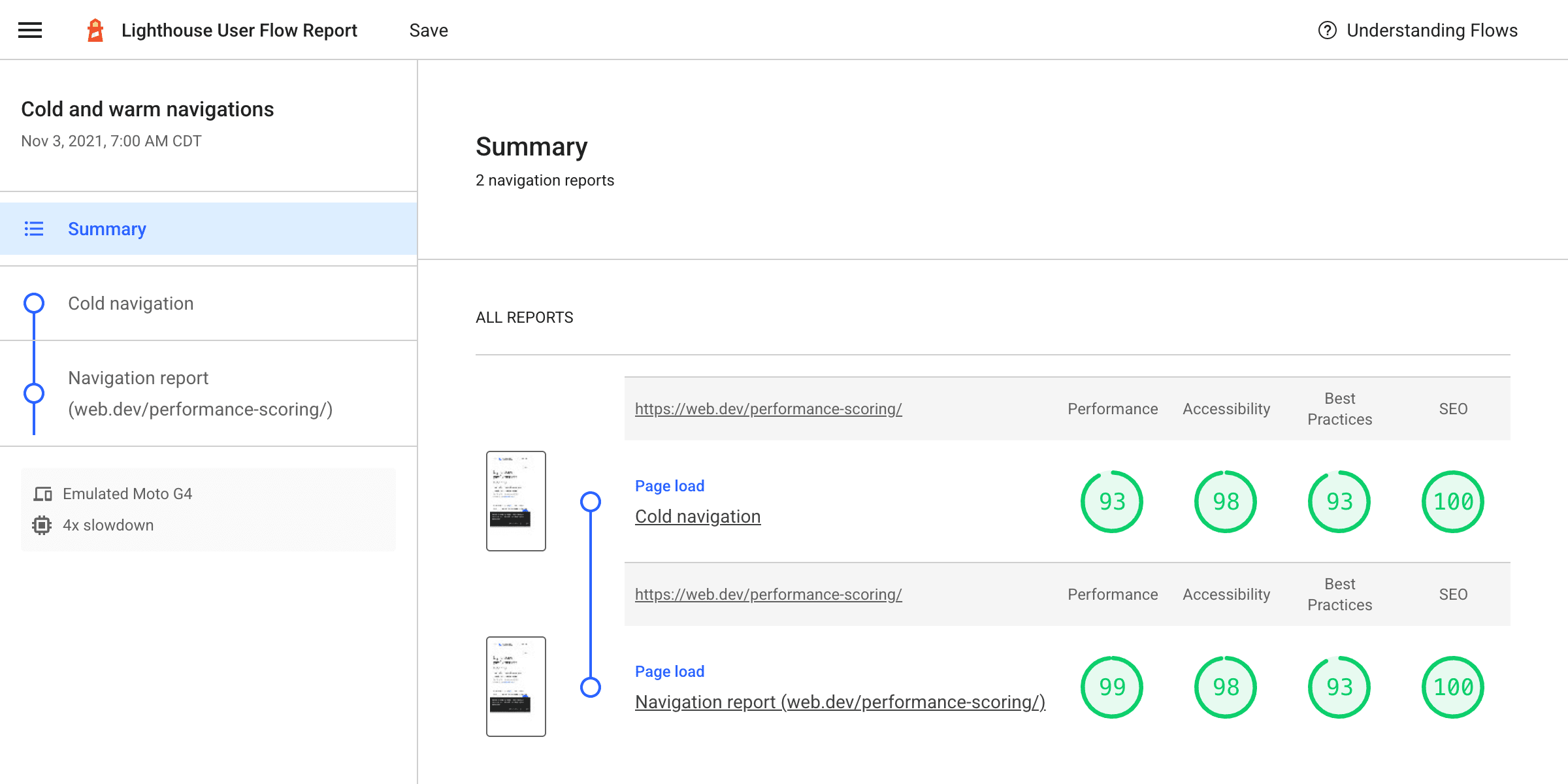
冷加载和温加载相结合,可以更全面地了解真实用户的体验。如果您的网站允许用户在同一次访问中加载多个网页,那么这或许能让您更真实地了解用户在实际使用中的体验。
快照
快照是一种新模式,可在单个时间点运行 Lighthouse 审核。与常规 Lighthouse 运行不同,该页面不会重新加载。这样,您就可以设置页面并测试其确切状态,例如,下拉菜单处于打开状态或表单已部分填写。
在此示例中,假设您想检查 Squoosh 中“高级设置”的一些新界面是否通过了自动化 Lighthouse 检查。只有在加载图片并展开选项菜单以显示高级设置时,这些设置才会显示。
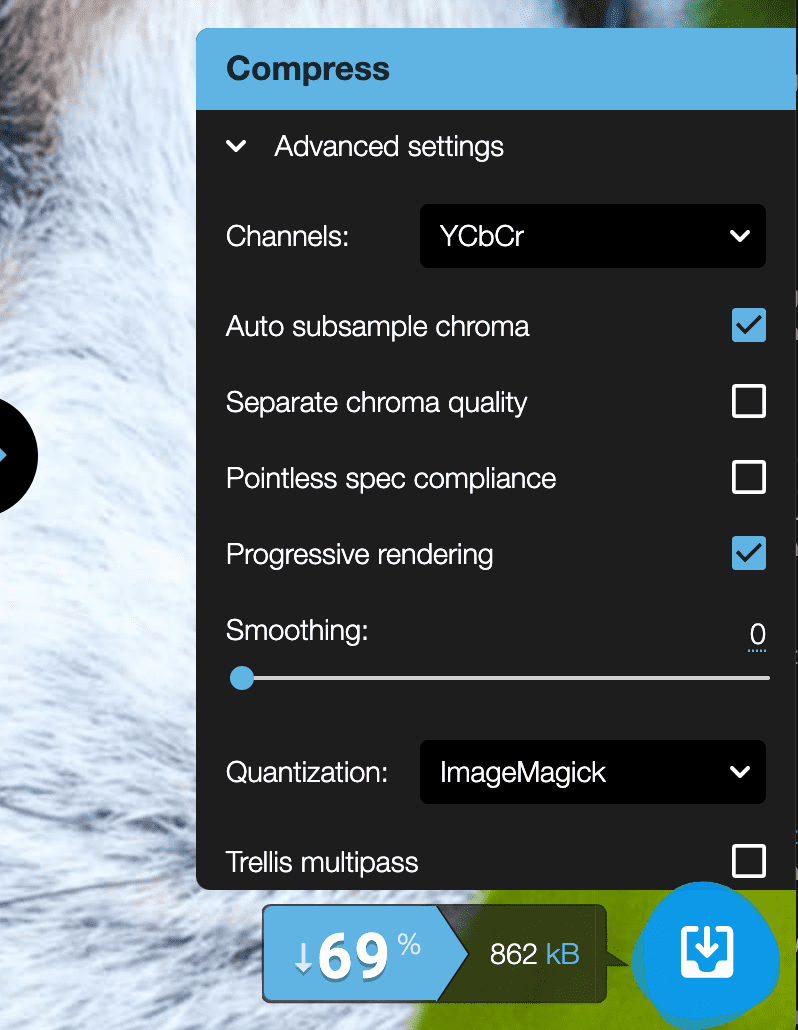
此过程可通过 Puppeteer 编写脚本,您实际上可以在每个步骤中截取 Lighthouse 快照:
async function captureReport() {
  const browser = await puppeteer.launch({headless: false});
  const page = await browser.newPage();

  const flow = await startFlow(page, {name: 'Squoosh snapshots'});

  await page.goto('https://squoosh.app/', {waitUntil: 'networkidle0'});

  // Wait for first demo-image button, then open it.
  const demoImageSelector = 'ul[class*="demos"] button';
  await page.waitForSelector(demoImageSelector);
  await flow.snapshot({stepName: 'Page loaded'});
  await page.click(demoImageSelector);

  // Wait for advanced settings button in UI, then open them.
  const advancedSettingsSelector = 'form label[class*="option-reveal"]';
  await page.waitForSelector(advancedSettingsSelector);
  await flow.snapshot({stepName: 'Demo loaded'});
  await page.click(advancedSettingsSelector);

  await flow.snapshot({stepName: 'Advanced settings opened'});

  browser.close();

  const report = await flow.generateReport();
  fs.writeFileSync('flow.report.html', report);
  open('flow.report.html', {wait: false});
}

captureReport();
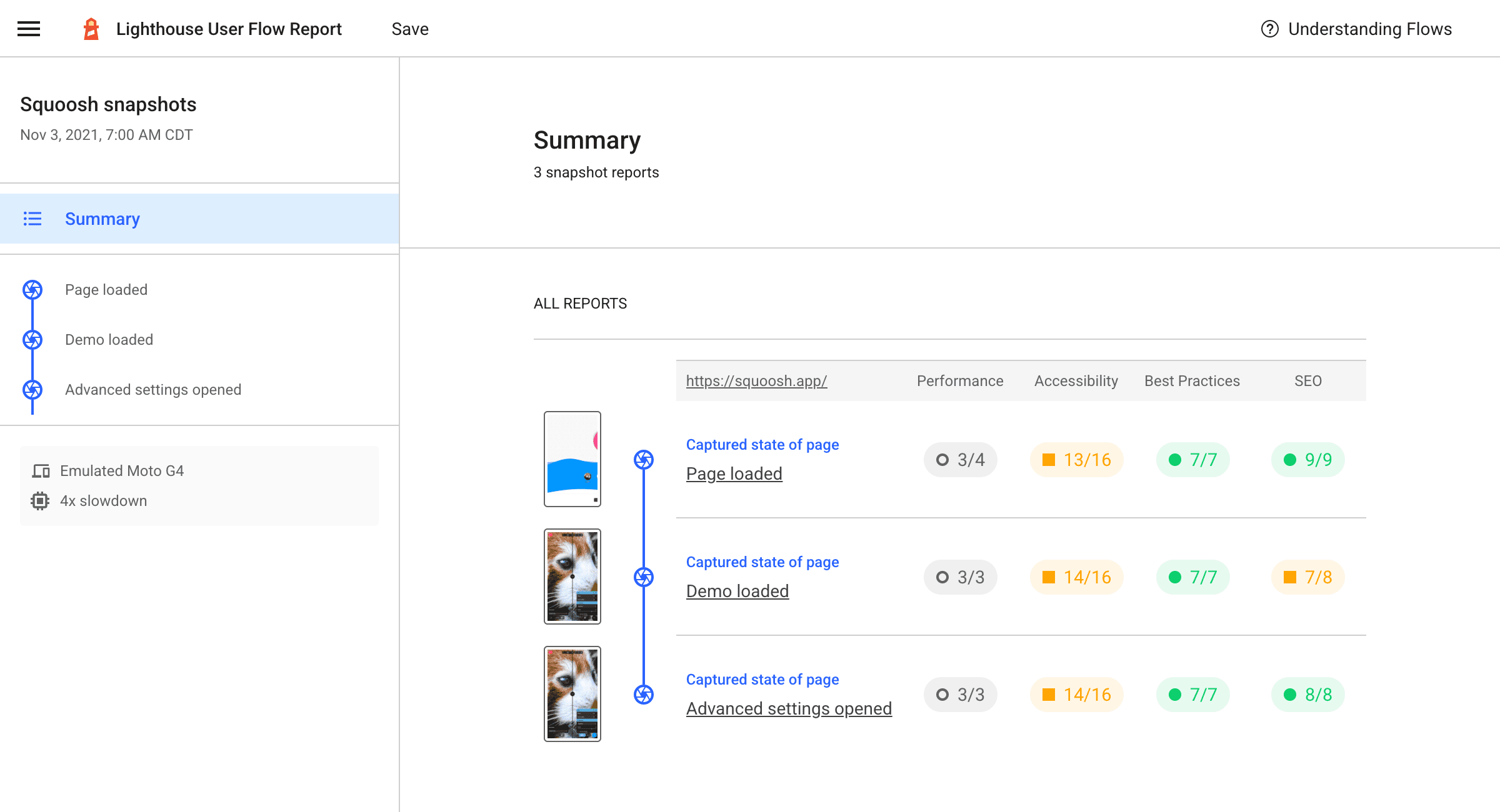
生成的报告显示,结果总体上不错,但可能有一些无障碍标准需要手动检查:
时间跨度
实测(例如来自 CrUX)和实验室(例如来自 Lighthouse)性能结果之间最大的差异之一是缺少用户输入。这时,时间跨度(最后一种用户体验流程模式)就可以派上用场了。
时间跨度模式会在一段时间内运行 Lighthouse 审核,其中可能包含也可能不包含导航。这是一种在互动期间捕获网页上发生的情况的好方法。例如,默认情况下,Lighthouse 会在网页加载期间衡量 CLS,但在实际环境中,CLS 是从初始导航开始衡量,直到网页关闭。如果用户互动是 CLS 的触发因素,那么 Lighthouse 之前无法捕获并帮助修复。
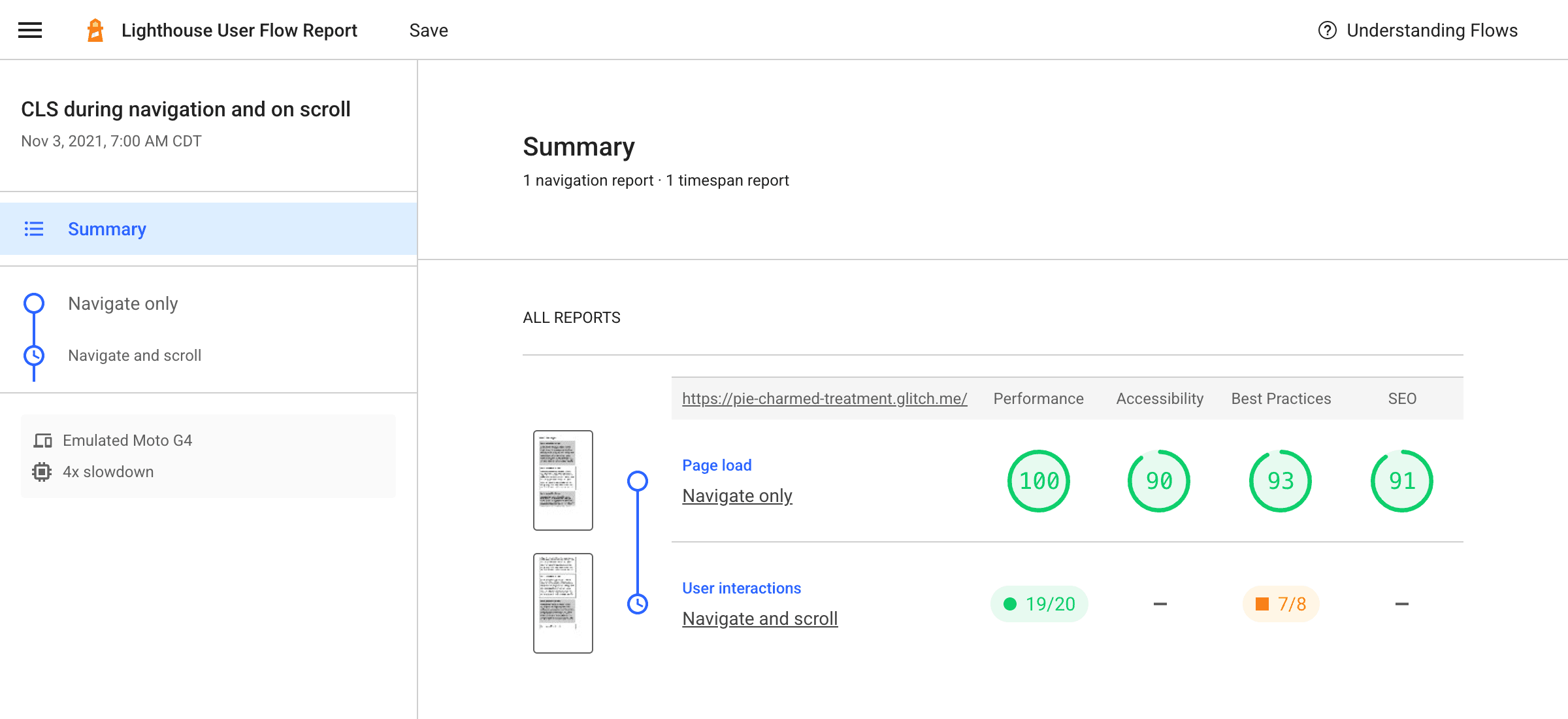
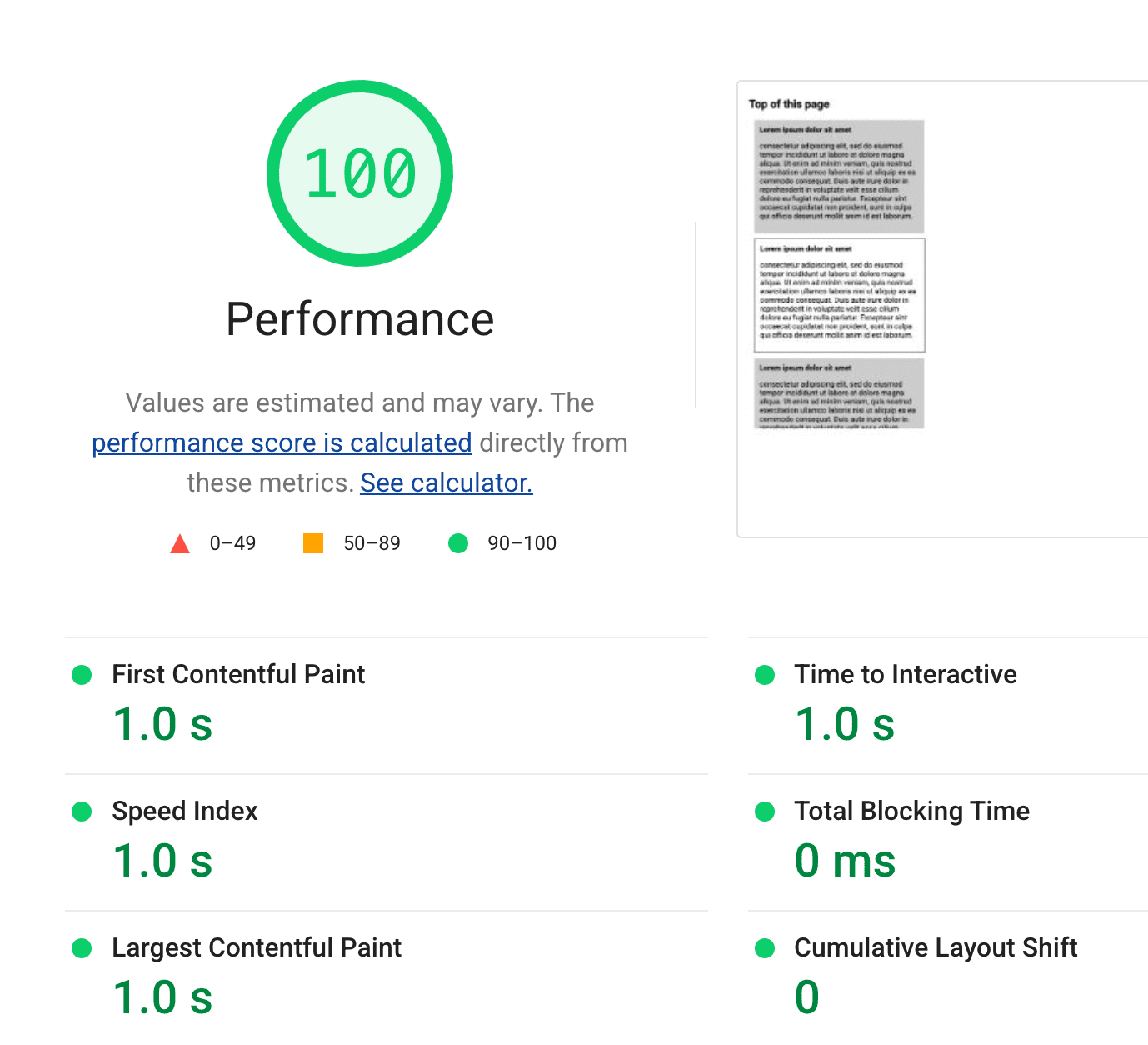
常规 Lighthouse 导航的 CLS 为 0。不过,一旦滚动,页面就会出现有问题的布局偏移,并且 CLS 值会上升。
以下脚本将生成包含这两项操作的用户体验流程报告,以展示其差异。
async function captureReport() {
  const browser = await puppeteer.launch({headless: false});
  const page = await browser.newPage();
  // Get a session handle to be able to send protocol commands to the page.
  const session = await page.target().createCDPSession();

  const testUrl = 'https://pie-charmed-treatment.example.com/';
  const flow = await startFlow(page, {name: 'CLS during navigation and on scroll'});

  // Regular Lighthouse navigation.
  await flow.navigate(testUrl, {stepName: 'Navigate only'});

  // Navigate and scroll timespan.
  await flow.startTimespan({stepName: 'Navigate and scroll'});
  await page.goto(testUrl, {waitUntil: 'networkidle0'});
  // We need the ability to scroll like a user. There's not a direct puppeteer function for this, but we can use the DevTools Protocol and issue a Input.synthesizeScrollGesture event, which has convenient parameters like repetitions and delay to somewhat simulate a more natural scrolling gesture.
  // https://chromedevtools.github.io/devtools-protocol/tot/Input/#method-synthesizeScrollGesture
  await session.send('Input.synthesizeScrollGesture', {
    x: 100,
    y: 600,
    yDistance: -2500,
    speed: 1000,
    repeatCount: 2,
    repeatDelayMs: 250,
  });
  await flow.endTimespan();

  await browser.close();

  const report = await flow.generateReport();
  fs.writeFileSync('flow.report.html', report);
  open('flow.report.html', {wait: false});
}

captureReport();
这会生成一份报告,其中比较了常规导航与包含导航和后续滚动的时间跨度:
深入分析每个步骤,仅导航步骤的 CLS 为 0。很棒的网站!
不过,“导航和滚动”步骤却给出了不同的答案。目前,时间跨度模式仅提供总阻塞时间和 Cumulative Layout Shift,但此页面上的延迟加载内容显然会降低网站的 CLS。
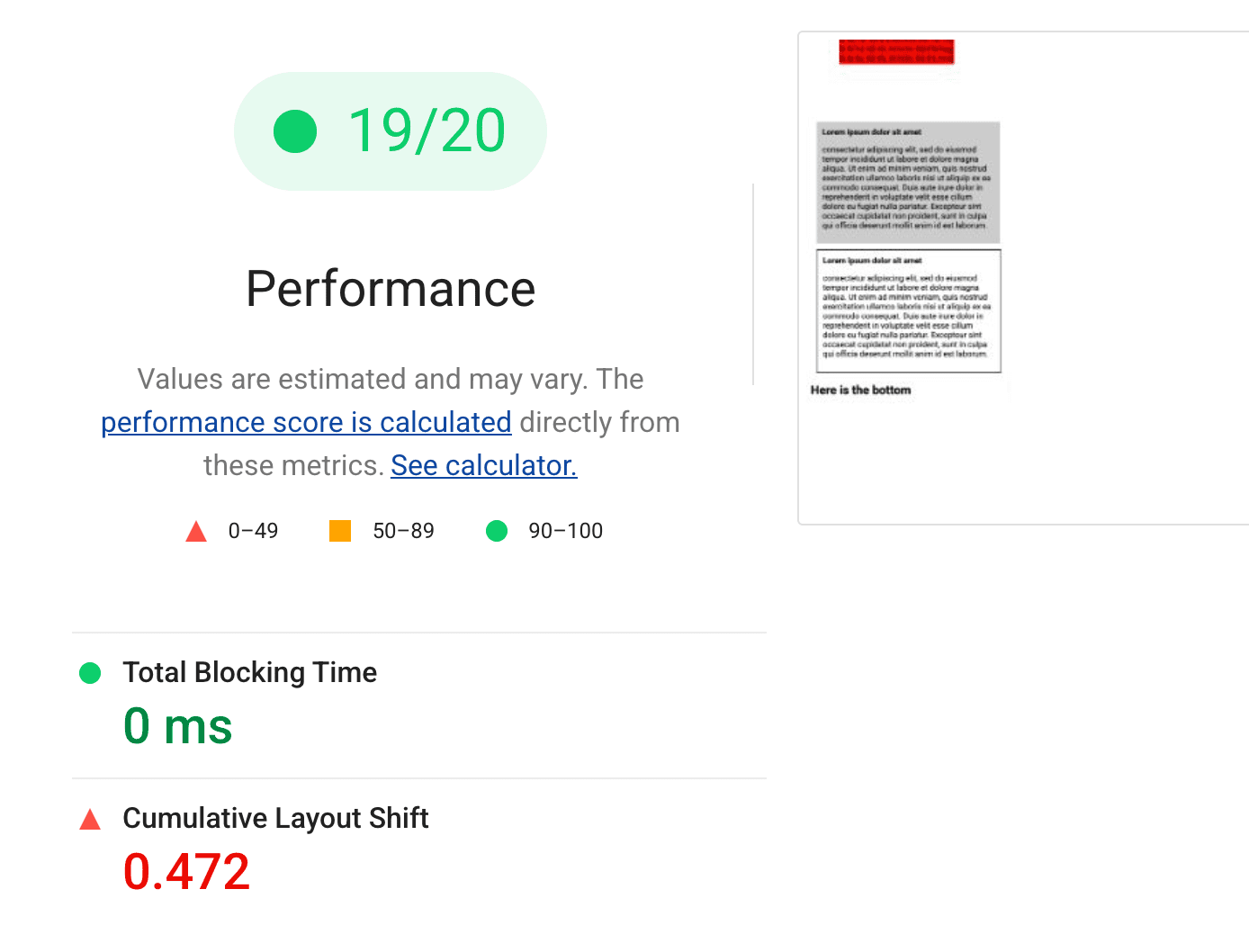
以前,Lighthouse 无法识别这种有问题的 CLS 行为,尽管它几乎肯定会出现在真实用户的体验中。通过脚本化互动进行性能测试可显著提高实验室保真度。
征求反馈
Lighthouse 中新的用户体验流程 API 可以执行许多新操作,但衡量用户遇到的各种场景可能仍然很复杂。