 Addy Osmani [X](https://twitter.com/addyosmani) [GitHub](https://github.com/addyosmani) [Bluesky](https://bsky.app/profile/addyosmani.bsky.social) Arthur Evans [X](https://twitter.com/devdocdude) [GitHub](https://github.com/arthurevans)
If you've optimized your code, but your site still loads too slowly, it's
probably the fault of third-party scripts.
Third-party scripts provide a variety of useful features that make the web
more dynamic, interactive, and interconnected. Some of them might even be
crucial to your website's function or revenue stream. But using them is
[risky](https://css-tricks.com/potential-dangers-of-third-party-javascript/):
- They can slow down your site's **performance**.
- They can cause **privacy** or **security** issues.
- They can be **unpredictable** and their behavior can have **unintended consequences**.
Ideally, you'll want to ensure third-party scripts aren't impacting your site's
[critical rendering path](https://web.dev/articles/critical-rendering-path). In this guide,
we'll walk through how to find and fix issues related to loading third-party
JavaScript and minimize the risks to your users.
## What are third-party scripts?
Third-party JavaScript often refers to scripts that can be embedded into any
site directly from a third-party vendor. Examples include:
- Social sharing buttons (Facebook, X, LinkedIn, Mastodon)
- Video player embeds (YouTube, Vimeo)
- Advertising iframes
- Analytics \& metrics scripts
- A/B testing scripts for experiments
- Helper libraries, such as date formatting, animation, or functional libraries
 An example YouTube video embed that can be added to a page using the following code.
Unfortunately, embedding third-party scripts means we often rely on them to run
quickly and not slow our pages down. Third-party scripts are a common cause of
performance slowdowns caused by resources outside the site owner's control,
including the following issues:
- Firing too many network requests to multiple servers. The more requests a site
has to make, the longer it can take to load.
- Sending [too much JavaScript](https://developer.chrome.com/docs/lighthouse/performance/bootup-time)
that keeps the main thread busy. Too much JavaScript can block DOM
construction, which delays page rendering. CPU-intensive script parsing and
execution can delay user interaction and cause battery drain.
- Sending large, [unoptimized image files](https://developer.chrome.com/docs/lighthouse/performance/uses-optimized-images)
or videos can consume data and cost users money.
- Security issues that can act as a
[single-point of failure (SPOF)](http://blog.patrickmeenan.com/2011/10/testing-for-frontend-spof.html)
if your page loads a script without caution.
- Insufficient [HTTP caching](https://web.dev/articles/http-cache), forcing the browser to
send more network requests to fetch resources.
- Lack of sufficient [server compression](https://web.dev/articles/optimizing-content-efficiency-optimize-encoding-and-transfer)
causes resources to load slowly.
- Blocking content display until they complete processing. This can also be true
for async A/B testing scripts.
- Use of legacy APIs known to harm the user experience, such as
[document.write()](https://developer.chrome.com/docs/lighthouse/best-practices/no-document-write).
- Excessive DOM elements or expensive CSS selectors.
- Including multiple third-party embeds can lead to multiple frameworks and
libraries being pulled in several times, wasting resources and making existing
performance issues worse.
- Third-party scripts often use embed techniques that can block
[window.onload](https://developer.mozilla.org/en/docs/Web/API/GlobalEventHandlers/onload)
if their servers respond slowly, even if the embed is using async or defer.
Your ability to fix issues with third-party scripts can depend on your
site and your ability to configure how you load third-party code. Fortunately, a
number of solutions and tools exist to find and fix issues with third-party
resources.
## How do you identify third-party script on a page?
Identifying third-party scripts on your site and determining their performance
impact is the first step toward optimizing them. We recommend using free web
speed test tools, including [Chrome DevTools](https://developer.chrome.com/docs/devtools),
[PageSpeed Insights](https://pagespeed.web.dev/), and [WebPageTest](https://www.webpagetest.org/),
to identify costly scripts. These tools display rich diagnostic information that
can tell you how many third-party scripts your site uses, and which take the
most time to execute.
WebPageTest's waterfall view can highlight the impact of heavy third-party
script use. The following image from [Tags Gone Wild](https://nystudio107.com/blog/tags-gone-wild)
shows an example diagram of the network requests required to load the main
content for a site, as opposed to the tracking and marketing scripts.
 The scripts on this page take longer to load than the page itself.
WebPageTest's [domain breakdown](https://www.google.com/url?q=https://www.webpagetest.org/result/180222_J4_8fee6855d6f45719e4f37d8d89ecbc20/1/domains/&sa=D&ust=1519325015196000&usg=AFQjCNGrRivilJS9yqqpombsUMQZQJx2nw)
can also be useful for visualizing how much content comes from third-party
origins. It breaks this down by both total bytes and the number of requests:
 The domain breakdown charts show how much of a page's content comes from third parties.
## How do I measure the impact of third-party script on my page?
When you see a script causing issues, find out what the script does and
determine whether your site needs it to function. If necessary, run an A/B test
to balance its perceived value versus its impact on key user engagement or
performance metrics.
### Lighthouse boot-up time audit
The Lighthouse [JavaScript boot-up time audit](https://developer.chrome.com/docs/lighthouse/performance/bootup-time) highlights scripts that have a costly script parse, compile or evaluation time.
This can help you identify CPU-intensive third-party scripts.
 The boot-up time audit shows which scripts take longest to load.
### Lighthouse network payloads audit
The Lighthouse [Network Payloads Audit](https://developer.chrome.com/docs/lighthouse/performance/total-byte-weight) identifies network requests, including third-party network requests that slow
down page load time and make users spend more than they expect on mobile data.
 The Network Payloads Audit shows which network requests take the most time and fetch the most data.
### Chrome DevTools network request blocking
Chrome DevTools lets you see how your page behaves when a specified script,
style sheet, or other resource isn't available. This is done with
[network request blocking](https://developer.chrome.com/blog/new-in-devtools-59#block-requests),
a feature that can help measure the impact of removing individual third-party
resources from your page.
To enable request blocking, right-click any request in the Network panel and
select **Block Request URL**. A request blocking tab then displays in the
DevTools drawer, letting you manage which requests have been blocked.
 Block individual network requests to see how your page behaves without them.
### Chrome DevTools Performance panel
The [Performance panel](https://developer.chrome.com/docs/devtools/performance/reference)
in Chrome DevTools helps identify issues with your page's web performance.
1. Click [**Record**](https://developer.chrome.com/docs/devtools/performance/reference#record-load).
2. Load your page. DevTools shows a waterfall diagram representing how your site spends its loading time.
3. Navigate to **Bottom-up** at the bottom of the Performance panel.
4. Click **Group by product** and sort your page's third-party scripts by load time.
 Third-party scripts sorted by product, starting with the longest load time.
To learn more about using Chrome DevTools to analyze page load performance, see
[Get started with analyzing runtime performance](https://developer.chrome.com/docs/devtools/performance).
The following is our recommended workflow for measuring the impact of
third-party scripts:
1. Use the Network panel to measure how long it takes to load your page.
- To emulate real-world conditions, we recommend turning on [network throttling](https://developer.chrome.com/docs/devtools/network/reference#throttling) and [CPU throttling](https://developer.chrome.com/docs/devtools/device-mode#cpu). Your users are unlikely to have the fast network connections and desktop hardware that reduce the impact of expensive scripts under lab conditions.
2. Block the URLs or domains responsible for third-party scripts you believe are an issue (see [Chrome DevTools Performance Panel](https://web.dev/articles/optimizing-content-efficiency-loading-third-party-javascript#performance-panel) for guidance on identifying costly scripts).
3. Reload the page and measure the load time again.
- For more accurate data, you might want to measure your load time at least three times. This accounts for some third-party scripts fetching different resources on each page load. To help with this, the DevTools Performance Panel supports multiple recordings.
### Measure third-party scripts' impact with WebPageTest
[WebPageTest](https://www.webpagetest.org/) supports blocking individual
requests from loading to measure their impact in **Advanced Settings** \>
**Block**. Use this feature to specify a list of domains to block, such as
advertising domains.
 List the domains you want to block in this panel.
We recommend the following workflow to use this feature:
1. Test a page without blocking third parties.
2. Repeat the test with some third parties blocked.
3. Select the two results from your [Test History](https://www.webpagetest.org/testlog/1/).
4. Click **Compare**.
 Select load test results to compare.
The following image shows WebPageTest's filmstrip feature comparing the load
sequences for pages with and without active third-party resources. We recommend
checking this for tests of individual third-party origins, to determine which
domains impact your page's performance most.
 The impact of blocking third-party resources, from [Using WebPageTest To Measure The Impact Of Third-Party Tags](https://andydavies.me/blog/2018/02/19/using-webpagetest-to-measure-the-impact-of-3rd-party-tags/) by Andy Davies.
WebPageTest also supports two commands operating at the DNS level for blocking domains:
- [`blockDomains`](https://sites.google.com/a/webpagetest.org/docs/using-webpagetest/scripting#TOC-blockDomains) takes a list of domains to block.
- [blockDomainsExcept](https://sites.google.com/a/webpagetest.org/docs/using-webpagetest/scripting#TOC-blockDomainsExcept) takes a list of domains and blocks anything *not* on the list.
WebPageTest also has a single point of failure (SPOF) tab that lets you
simulate a timeout or complete failure to load a resource. Unlike domain
blocking, SPOF slowly times out, which can make it useful for testing how
your pages behave when third-party services are under heavy load or temporarily
unavailable.
 Use the SPOF testing feature to simulate the failure of specified domains.
### Detect expensive iframes using Long Tasks
When scripts in third-party iframes take a long time to run, they can block the
main thread and delay other tasks. These long tasks can cause event handlers
to work slowly or frames to drop, making the user experience worse.
To detect long tasks for
[Real User Monitoring (RUM)](https://en.wikipedia.org/wiki/Real_user_monitoring),
use the JavaScript
[PerformanceObserver](https://developer.mozilla.org/docs/Web/API/PerformanceObserver)
API to observe
[longtask](https://web.dev/articles/user-centric-performance-metrics#custom_metrics)
entries. These entries contain an attribution property that you can use to
determine which frame context caused the long task.
The following code logs `longtask` entries to the console, including one for an
"expensive" iframe:
To learn more about monitoring Long Tasks, see
[User-centric Performance Metrics](https://web.dev/articles/user-centric-performance-metrics#custom_metrics).
## How do you load third-party script efficiently?
If a third-party script is slowing down your page load, you have several options
to improve performance:
- Load the script using the `async` or `defer` attribute to avoid blocking document parsing.
- If the third-party server is slow, consider self-hosting the script.
- If the script doesn't add clear value to your site, remove it.
- Use [Resource Hints](https://developer.chrome.com/docs/lighthouse/performance/uses-rel-preconnect) like `` or `` to perform a DNS lookup for domains hosting third-party scripts.
### Use `async` or `defer`
JavaScript execution is parser-blocking. When the browser encounters a script,
it must pause DOM construction, pass the script to the JavaScript engine, and
allow the script to execute before continuing with DOM construction.
The `async` and `defer` attributes change this behavior as follows:
- `async` causes the browser to download the script asynchronously while it
continues to parse the HTML document. When the script finishes downloading,
parsing is blocked while the script executes.
- `defer` causes the browser to download the script asynchronously while it
continues to parse the HTML document, then waits to run the script until
document parsing is complete.
Always use `async` or `defer` for third-party scripts, unless the script is
necessary for the critical rendering path. Use `async` if it's important for the
script to run earlier in the loading process, such as for some analytics
scripts. Use `defer` for less critical resources, such as videos that render
lower on the page than the user will initially see.
If performance is your primary concern, we recommend waiting to add asynchronous
scripts until after your page's critical content loads. We don't recommend using
`async` for essential libraries such as jQuery.
> [!NOTE]
> **Note:** In Chrome and other Blink-based browsers, `async` and `defer` [lower the priority of the network request](https://docs.google.com/document/d/1bCDuq9H1ih9iNjgzyAL0gpwNFiEP4TZS-YLRp_RuMlc) for resources so it can cause it to load significantly later than it would as a blocking script. This is useful to know in particular for analytics scripts.
Some scripts must be loaded without `async` or `defer`, especially those which
are crucial parts of your site. These include UI libraries or content delivery
network (CDN) frameworks that your site can't function without.
Other scripts just don't work if they're loaded asynchronously. Check the
documentation for any scripts you're using, and replace any scripts that can't
be loaded asynchronously with alternatives that can. Be aware that some third
parties recommend running their scripts synchronously, even if they would work
equally well asynchronously.
Remember that `async` doesn't fix everything. If your page includes a large
number of scripts, such as tracking scripts for advertising purposes, loading
them asynchronously won't prevent them from slowing down page load.
### Use Resource Hints to reduce connection setup time
Establishing connections to third-party origins can take a long time, especially
on slow networks, because network requests have multiple complex components,
including DNS lookups and redirects. You can use
[Resource Hints](https://developer.chrome.com/docs/lighthouse/performance/uses-rel-preconnect) like
[](https://developer.chrome.com/docs/lighthouse/performance/uses-rel-preconnect#improve-page-load-speed-with-preconnect)
to perform DNS lookups for domains hosting third-party scripts early in the page
load process, so that the rest of the network request can proceed more quickly
later:
If the third-party domain you're connecting to uses HTTPS, you can also use
[](https://developer.chrome.com/docs/lighthouse/performance/uses-rel-preconnect),
which both performs DNS lookups *and* resolves TCP round-trips and handle TLS
negotiations. These other steps can be very slow because they involve
verifying SSL certificates, so preconnecting can greatly decrease load time.
### "Sandbox" scripts with an iframe
If you load a third-party script directly into an iframe, it doesn't block
execution of the main page. [AMP](https://www.ampproject.org/learn/about-how/)
uses this approach to keep JavaScript out of the
[critical path](https://web.dev/articles/critical-rendering-path). Note that this approach
still blocks the `onload` event, so try not to attach critical features to
`onload`.
Chrome also supports [Permissions Policy](https://developer.mozilla.org/docs/Web/HTTP/Permissions_Policy)
(formerly Feature Policy), a set of policies that allow a developer to
selectively disable access to certain browser features. You can use this to
prevent third-party content from introducing unwanted behaviors to a site.
### Self-host third-party scripts
If you want more control over how a critical script loads, for example to reduce
DNS time or improve HTTP caching headers, you might be able to host it yourself.
However, self-hosting comes with issues of its own, especially when it comes
to updating scripts. Self-hosted scripts won't get automatic updates for API
changes or security fixes, which can lead to revenue losses or security issues
until you can update your script manually.
As an alternative, you can cache third-party scripts using
[service workers](https://developer.chrome.com/docs/workbox/service-worker-overview)
for more control over how often scripts are fetched from the network. You can
also use service workers to create loading strategies that throttle nonessential
third-party requests until your page reaches a key user moment.
### A/B test smaller samples of users
[A/B testing](https://www.optimizely.com/optimization-glossary/ab-testing/) (or
split-testing) is a technique for experimenting with two versions of a page to
analyze user experience and behavior. It makes the page versions available to
different samples of your website traffic, and determines from analytics which
version provides a better conversion rate.
However, by design, A/B testing delays rendering to decide which experiment
needs to be active. JavaScript is often used to check if any of your users
belong to an A/B test experiment and then enable the correct variant. This
process can worsen the experience even for users who aren't part of the
experiment.
To speed up page rendering, we recommend sending your A/B testing scripts to a
smaller sample of your user base, and run the code that decides which version of
the page to display serverside.
### Lazy load third-party resources
Embedded third-party resources, such as ads and videos, can be major
contributors to slow page speed when constructed poorly. Lazy loading can be
used to load embedded resources only when necessary, for example, waiting to
serve ads in the page footer until the user scrolls far enough to see them. You
can also lazy load third-party content after the main page content loads but
before a user might otherwise interact with the page.
 You can lazy load assets that the user won't see immediately when the page loads.
Be careful when lazy loading resources, because it often involves JavaScript
code that can be impacted by flaky network connections.
> [!NOTE]
> **Note:** [LazySizes](https://github.com/aFarkas/lazysizes) is a popular JavaScript library for lazy loading images and [iframes](http://afarkas.github.io/lazysizes/#examples). It supports YouTube embeds and [widgets](https://github.com/aFarkas/lazysizes/tree/gh-pages/plugins/unveilhooks).
DoubleClick have guidance on how to lazy load ads in their
[official documentation](https://support.google.com/dfp_premium/answer/4578089#lazyloading).
#### Efficient lazy loading with Intersection Observer
Historically, methods for detecting whether an element is visible in the
viewport for lazy loading purposes have been error-prone and often slow down the
browser. These inefficient methods often listen for
[scroll](https://developer.mozilla.org/docs/Web/Events/scroll) or
[resize](https://developer.mozilla.org/docs/Web/Events/resize) events, then use
DOM APIs like
[getBoundingClientRect()](https://developer.mozilla.org/docs/Web/API/Element/getBoundingClientRect)
to calculate where elements are relative to the viewport.
[IntersectionObserver](https://web.dev/articles/intersectionobserver-v2) is a browser
API that lets page owners efficiently detect when an observed element enters or
leaves the browser's viewport. LazySizes also has
[optional support](https://github.com/aFarkas/lazysizes/blob/097a9878817dd17be3366633e555f3929a7eaaf1/src/lazysizes-intersection.js)
for IntersectionObserver.
#### Lazy load analytics
If you defer loading of your analytics scripts for too long, you can miss
valuable analytics data. Fortunately, there are strategies available for
initializing analytics lazily while retaining early page-load data.
Phil Walton's blog post [The Google Analytics Setup I Use on Every Site I Build](https://philipwalton.com/articles/the-google-analytics-setup-i-use-on-every-site-i-build/)
covers one such strategy for Google Analytics.
## Load third-party scripts safely
This section provides guidance for loading third-party scripts as safely as possible.
### Avoid `document.write()`
Third-party scripts, especially for older services, sometimes use
[`document.write()`](https://developer.mozilla.org/docs/Web/API/Document/write)
to inject and load scripts. This is a problem because `document.write()` behaves
inconsistently, and its failures are difficult to debug.
The fix for document.write() issues is to not use it. In Chrome 53 and higher,
Chrome DevTools logs warnings to the console for problematic use of
`document.write()`:
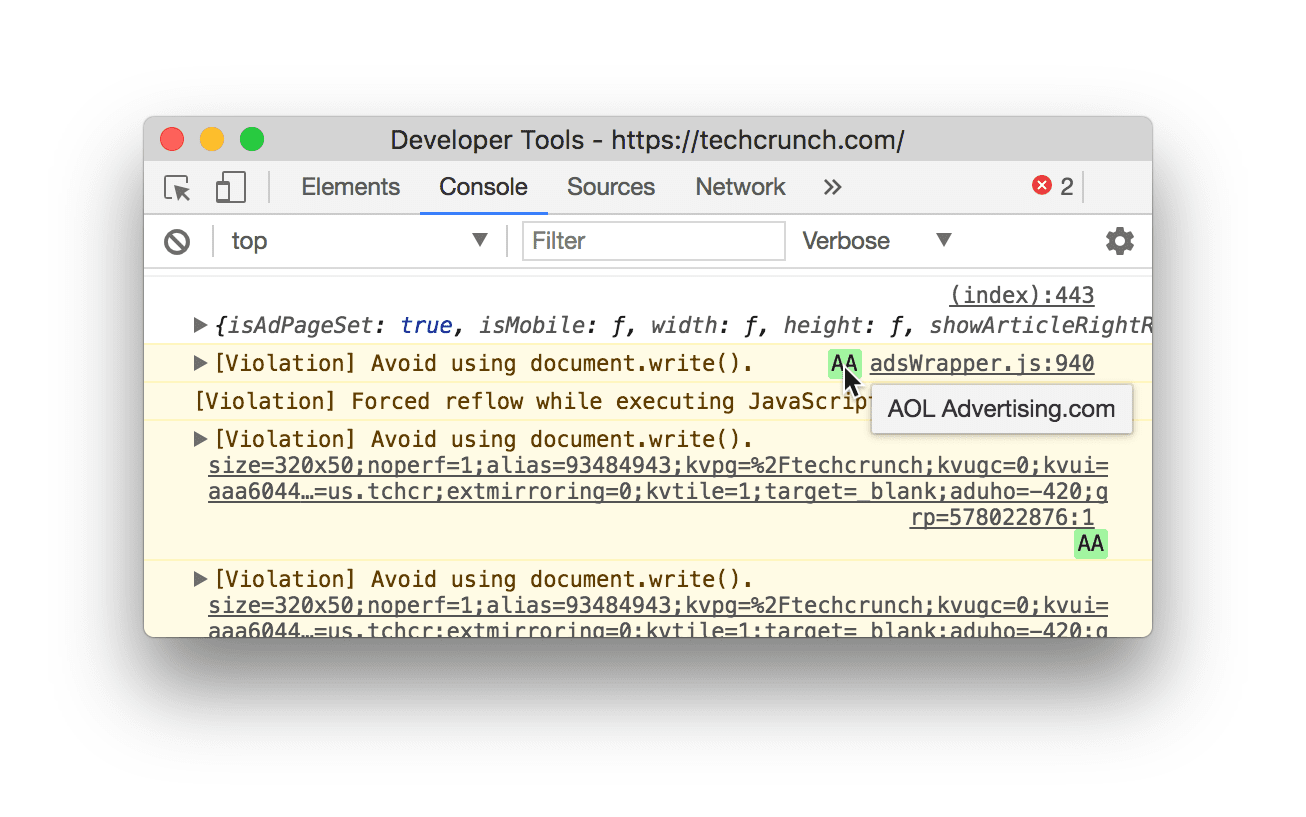 Chrome DevTools flags `document.write()` usage.
If you receive this error, you can check your site for `document.write()` usage
by looking for [HTTP headers](https://developer.mozilla.org/docs/Web/HTTP/Headers)
sent to your browser.
[Lighthouse](https://developer.chrome.com/docs/lighthouse/overview) can also
highlight any third-party scripts
[still using `document.write()`](https://developer.chrome.com/docs/lighthouse/best-practices/no-document-write).
 A Lighthouse report showing which scripts use `document.write()`.
### Use tag managers carefully
A *tag* is a code snippet that lets digital marketing teams collect data, set
cookies, or integrate third-party content like social media widgets
into a site. These tags add network requests, JavaScript dependencies, and other
resources to your page that can impact its performance, and minimizing that
impact for your users gets more difficult as more tags are added.
To keep page loading fast, we recommend using a tag manager such as
[Google Tag Manager (GTM)](https://www.google.com/analytics/tag-manager/). GTM
lets you deploy tags asynchronously so they don't block each other from loading,
reduces the number of network calls a browser needs to execute tags, and
collects tag data in its [Data Layer](https://developers.google.com/tag-platform/tag-manager/web/datalayer)
UI.
#### Risks of using tag managers
Although tag managers are designed to streamline page loading, using them
carelessly can slow it down instead in the following ways:
- Excessive numbers of tags and [auto-event listeners](https://support.google.com/analytics/answer/6164470) in your tag manager causes the browser to make more network requests than it would otherwise need to, and reduces your code's ability to [respond to events quickly](https://web.dev/articles/rail).
- Anyone with credentials and access can add JavaScript to your tag manager. Not only can this increase the number of costly network requests needed to load your page, but can also present security risks and other performance issues from unnecessary scripts. To reduce these risks, we recommend limiting access to your tag manager.
### Avoid scripts that pollute the global scope
Third-party scripts can behave in all kinds of ways that break your page
unexpectedly:
- Scripts loading JavaScript dependencies can pollute the global scope with code that interacts badly with your code.
- Unexpected updates can cause breaking changes.
- Third-party code can be modified in transit to behave differently between testing and deployment of your page.
We recommend conducting regular audits of the third-party scripts you load to
check for bad actors. You can also implement self-testing,
[subresource integrity](https://developer.mozilla.org/docs/Web/Security/Subresource_Integrity),
and secure transmission of third-party code to keep your page safe.
## Mitigation strategies
Here are some large-scale strategies for minimizing the impact of third-party
scripts on your site's performance and security:
- **[HTTPS](https://web.dev/articles/why-https-matters)** : Sites that use HTTPS must not depend
on third parties that use HTTP. For more information, refer to
[Mixed Content](https://developer.mozilla.org/docs/Web/Security/Mixed_content).
- **[Sandboxing](https://developer.mozilla.org/en/docs/Web/HTML/Element/iframe)** :
Consider running third-party scripts in iframes with the `sandbox` attribute to
restrict the actions available to the scripts.
- **[Content Security Policy (CSP)](https://developer.mozilla.org/docs/Web/HTTP/CSP)** :
You can use HTTP headers in your server's response to define trusted script
behaviors for your site, and detect and mitigate the effects of some attacks,
such as [Cross Site Scripting (XSS)](https://en.wikipedia.org/wiki/Cross-site_scripting).
The following is an example of how to use CSP's
[script-src](https://developer.mozilla.org/docs/Web/HTTP/Headers/Content-Security-Policy/script-src)
directive to specify a page's allowed JavaScript sources:
// Given this CSP header Content-Security-Policy: script-src
https://example.com/ // The following third-party script will not be loaded or
executed
## Further reading
To learn more about optimizing third-party Javascript, we recommend you read the
following:
- [Performance and Resilience: Stress-Testing Third Parties](https://csswizardry.com/2017/07/performance-and-resilience-stress-testing-third-parties/)
- [Adding interactivity with JavaScript](https://web.dev/articles/critical-rendering-path/adding-interactivity-with-javascript)
- [Potential dangers with Third-party Scripts](https://css-tricks.com/potential-dangers-of-third-party-javascript/)
- [How 3rd Party Scripts can be performant citizens on the web](https://www.twnsnd.com/posts/performant_third_party_scripts.html)
- [Why Fast Matters - CSS Wizardry](https://speakerdeck.com/csswizardry/why-fast-matters)
- [The JavaScript Supply Chain Paradox: SRI, CSP and Trust in Third Party Libraries](https://www.troyhunt.com/the-javascript-supply-chain-paradox-sri-csp-and-trust-in-third-party-libraries/)
- [Third-party CSS isn't safe](https://jakearchibald.com/2018/third-party-css-is-not-safe/)
*With thanks to Kenji Baheux, Jeremy Wagner, Pat Meenan, Philip Walton, Jeff
Posnick and Cheney Tsai for their reviews.*