![Boris Smus](https://web.dev/images/authors/smus.jpg) Boris Smus [X](https://twitter.com/borismus) [Homepage](https://smus.com/)

<br />

## Introduction

Mobile devices such as smartphones and tablets usually have a capacitive
touch-sensitive screen to capture interactions made with the user's fingers. As
the mobile web evolves to enable increasingly sophisticated applications, web
developers need a way to handle these events. For example, nearly any
fast-paced game requires the player to press multiple buttons at once, which,
in the context of a touchscreen, implies multi-touch.

Apple introduced their [touch events API](http://developer.apple.com/library/safari/#documentation/UserExperience/Reference/TouchEventClassReference/TouchEvent/TouchEvent.html#//apple_ref/doc/uid/TP40009358) in iOS 2.0. Android has been catching up to this de-facto
standard and closing the gap. Recently a W3C working group has come together to
work on this [touch events specification](http://dvcs.w3.org/hg/webevents/raw-file/tip/touchevents.html).

In this article I'll dive into the touch events API provided by iOS and
Android devices, as well as desktop Chrome on hardware that supports touch, and explore what sorts of applications you can build, present some
best practices, and cover useful techniques that make it easier to develop
touch-enabled applications.

## Touch events

Three basic touch events are outlined in the spec and implemented
widely across mobile devices:

- **touchstart**: a finger is placed on a DOM element.
- **touchmove**: a finger is dragged along a DOM element.
- **touchend**: a finger is removed from a DOM element.

Each touch event includes three lists of touches:

- **touches**: a list of all fingers currently on the screen.
- **targetTouches**: a list of fingers on the current DOM element.
- **changedTouches**: a list of fingers involved in the current event. For example, in a touchend event, this will be the finger that was removed.

These lists consist of objects that contain touch information:

- **identifier**: a number that uniquely identifies the current finger in the touch session.
- **target**: the DOM element that was the target of the action.
- **client/page/screen coordinates**: where on the screen the action happened.
- **radius coordinates and rotationAngle**: describe the ellipse that approximates finger shape.

## Touch-enabled apps

The **touchstart** , **touchmove** , and
**touchend** events provide a rich enough feature set to support
virtually any kind of touch-based interaction -- including all of the usual
multi-touch gestures like pinch-zoom, rotation, and so on.

This snippet lets you drag a DOM element around using single-finger
touch:

```javascript
var obj = document.getElementById('id');
obj.addEventListener('touchmove', function(event) {
  // If there's exactly one finger inside this element
  if (event.targetTouches.length == 1) {
    var touch = event.targetTouches[0];
    // Place element where the finger is
    obj.style.left = touch.pageX + 'px';
    obj.style.top = touch.pageY + 'px';
  }
}, false);
```

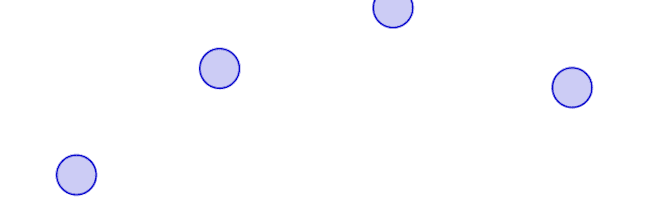
Below is a [sample](https://github.com/borismus/MagicTouch/blob/master/samples/tracker.html)
that displays all current touches on the screen. It's useful just to get a
feeling for the responsiveness of the device.
[![Finger tracking.](https://web.dev/static/articles/mobile-touch/image/finger-tracking-c3a836001a408.png)](https://github.com/borismus/MagicTouch/blob/master/samples/tracker.html)
```javascript
// Setup canvas and expose context via ctx variable
canvas.addEventListener('touchmove', function(event) {
  for (var i = 0; i < event.touches.length; i++) {
    var touch = event.touches[i];
    ctx.beginPath();
    ctx.arc(touch.pageX, touch.pageY, 20, 0, 2*Math.PI, true);
    ctx.fill();
    ctx.stroke();
  }
}, false);
```

### Demos

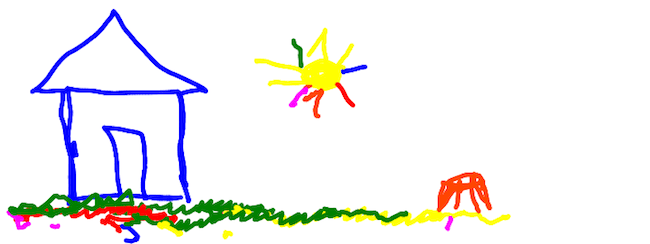
A number of interesting multi-touch demos are already in the wild, such
as this [canvas-based drawing](http://paulirish.com/demo/multi) demo
by Paul Irish and others.
[![Drawing screenshot](https://web.dev/static/articles/mobile-touch/image/drawing-screenshot-bf38107d6f47a.png)](http://paulirish.com/demo/multi)
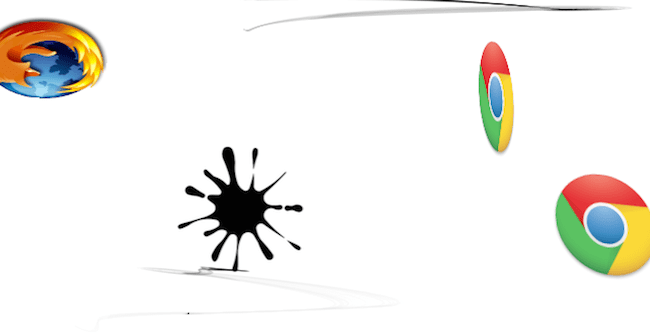
And [Browser Ninja](http://borismus.github.com/mobile-web-samples/browser-ninja/), a tech
demo that is a Fruit Ninja clone using CSS3 transforms and transitions, as well as
canvas:
[![Browser ninja](https://web.dev/static/articles/mobile-touch/image/browser-ninja-7dfdbcf47ac78.png)](http://borismus.github.com/mobile-web-samples/browser-ninja/)
## Best practices

### Prevent zooming

Default settings don't work very well for multi-touch, since your swipes and
gestures are often associated with browser behavior, such as scrolling and
zooming.

To disable zooming, setup your viewport so that it is not user scalable using
the following meta tag:

```html
<meta name="viewport" 
  content="width=device-width, initial-scale=1.0, user-scalable=no>
```

Check out [this mobile HTML5 article](https://www.html5rocks.com/mobile/mobifying.html#toc-meta-viewport) for more information on setting your viewport.

### Prevent scrolling

Some mobile devices have default behaviors for touchmove, such as the
classic iOS overscroll effect, which causes the view to bounce back when
scrolling exceeds the bounds of the content. This is confusing in many
multi-touch applications, and can easily be disabled:

```javascript
document.body.addEventListener('touchmove', function(event) {
  event.preventDefault();
}, false); 
```

### Render carefully

If you are writing a multi-touch application that involves complex
multi-finger gestures, be careful how you react to touch events, since you will
be handling so many at once. Consider the sample in the previous section that
draws all touches on the screen. You could draw as soon as there is a touch
input:

```javascript
canvas.addEventListener('touchmove', function(event) {
  renderTouches(event.touches);
}, false);
```

But this technique does not scale with number of fingers on the screen.
Instead, you could track all of the fingers, and render in a loop to get far
better performance:

```javascript
var touches = []
canvas.addEventListener('touchmove', function(event) {
  touches = event.touches;
}, false);

// Setup a 60fps timer
timer = setInterval(function() {
  renderTouches(touches);
}, 15);
```

> [!NOTE]
> **Note:** **Tip:** setInterval is not great for animations, since it doesn't take into account the browser's own rendering loop. Modern desktop browsers provide [requestAnimationFrame](https://developer.mozilla.org/en-US/docs/Web/API/window/requestAnimationFrame), which is a much better option for performance and battery life reasons. Once supported in mobile browsers, this will be the preferred way of doing things.

### Make use of targetTouches and changedTouches

Remember that event.touches is an array of **ALL**
fingers in contact with the screen, not just the ones on the DOM element's
target. You might find it much more useful to use event.targetTouches or
event.changedTouches instead.

Finally, since you are developing for mobile, you should be aware of
general mobile best practices, which are covered in [Eric Bidelman's article](https://www.html5rocks.com/mobile/mobifying.html), as well as this [W3C document](http://www.w3.org/TR/mwabp/).

## Device support

Unfortunately, touch event implementations vary greatly in completeness and
quality. I wrote a [diagnostics script](https://github.com/borismus/MagicTouch/blob/master/index.html) that displays some basic information about the touch API
implementation, including which events are supported, and touchmove firing
resolution. I tested Android 2.3.3 on Nexus One and Nexus S hardware, Android
3.0.1 on Xoom, and iOS 4.2 on iPad and iPhone.

In a nutshell, all tested browsers support the **touchstart** ,
**touchend** , and **touchmove** events.

The spec provides three additional touch events, but no tested browsers
support them:

- **touchenter**: a moving finger enters a DOM element.
- **touchleave**: a moving finger leaves a DOM element.
- **touchcancel**: a touch is interrupted (implementation specific).

Within each touch list, the tested browsers also provide the
**touches** , **targetTouches** and
**changedTouches** touch lists. However, no tested browsers
support radiusX, radiusY or rotationAngle, which specify the shape of the
finger touching the screen.

During a touchmove, events fire at roughly 60 times a second across all
tested devices.

### Android 2.3.3 (Nexus)

On the Android Gingerbread Browser (tested on Nexus One and Nexus S), there
is no multi-touch support. This is a [known issue](http://code.google.com/p/android/issues/detail?id=11909).

### Android 3.0.1 (Xoom)

On Xoom's browser, there is basic multi-touch support, but it only works on
a single DOM element. The browser does not correctly respond to two
simultaneous touches on different DOM elements. In other words, the following
will react to two simultaneous touches:

```javascript
obj1.addEventListener('touchmove', function(event) {
  for (var i = 0; i < event.targetTouches; i++) {
    var touch = event.targetTouches[i];
    console.log('touched ' + touch.identifier);
  }
}, false);
```

But the following will not:

```javascript
var objs = [obj1, obj2];
for (var i = 0; i < objs.length; i++) {
  var obj = objs[i];
  obj.addEventListener('touchmove', function(event) {
    if (event.targetTouches.length == 1) {
      console.log('touched ' + event.targetTouches[0].identifier);
    }
  }, false);
}
```

### iOS 4.x (iPad, iPhone)

iOS devices fully support multi-touch, are capable of tracking quite a few
fingers and provide a very responsive touch experience in the browser.

## Developer tools

In mobile development, it's often easier to start prototyping on the desktop
and then tackle the mobile-specific parts on the devices you intend to support.
Multi-touch is one of those features that's difficult to test on the PC, since
most PCs don't have touch input.

Having to test on mobile can lengthen your development cycle, since every
change you make needs to be pushed out to a server and then loaded on the
device. Then, once running, there's little you can do to debug your
application, since tablets and smartphones lack web developer tooling.

A solution to this problem is to simulate touch events on your development
machine. For single-touches, touch events can be simulated based on mouse
events. Multi-touch events can be simulated if you have a device with touch
input, such as a modern Apple MacBook.

### Single-touch events

If you would like to simulate single-touch events on your desktop, Chrome provides touch event emulation from the developer tools. Open up the Developer tools, then select the Settings gear, then "Overrides" or "Emulation", and turn on "Emulate touch events".

For other browsers, you may wish to try out [Phantom Limb](http://www.vodori.com/blog/phantom-limb.html), which
simulates touch events on pages and also gives a giant hand to boot.

There's also the [Touchable](https://github.com/dotmaster/Touchable-jQuery-Plugin)
jQuery plugin that unifies touch and mouse events across platforms.

### Multi-touch events

To enable your multi-touch web application to work in your browser on your
multi-touch trackpad (such as a Apple MacBook or MagicPad), I've created the [MagicTouch.js polyfill](http://github.com/borismus/MagicTouch). It
captures touch events from your trackpad and turns them into
standard-compatible touch events.

1. Download and install the [npTuioClient NPAPI plugin](https://github.com/fajran/npTuioClient) into \~/Library/Internet Plug-Ins/.
2. Download the [TongSeng TUIO app](https://github.com/fajran/tongseng) for Mac's MagicPad and start the server.
3. Download [MagicTouch.js](http://github.com/borismus/MagicTouch), a javascript library to simulate spec-compatible touch events based on npTuioClient callbacks.
4. Include the magictouch.js script and npTuioClient plugin in your application as follows:

```html
<head>
  ...
  <script src="/path/to/magictouch.js"></script>
</head>

<body>
  ...
  <object id="tuio" type="application/x-tuio" style="width: 0px; height: 0px;">
    Touch input plugin failed to load!
  </object>
</body>
```

You may need to enable the plugin.

A live demo with magictouch.js is available at [paulirish.com/demo/multi](http://www.paulirish.com/demo/multi):

[Video](https://www.youtube.com/watch?v=6wL-pLX9Kq0)

I tested this approach only with Chrome 10, but it should work on other
modern browsers with only minor tweaks.

If your computer does not have multi-touch input, you can simulate touch
events using other TUIO trackers, such as the [reacTIVision](http://reactivision.sourceforge.net/). For
more information, see the [TUIO project page](http://www.tuio.org/).

Note that your gestures might be identical to OS-level multi-touch gestures.
On OS X, you can configure system-wide events by going to the Trackpad
preference pane in System Preferences.

As multi-touch features become more widely supported across mobile browsers,
I'm very excited to see new web applications take full advantage of this rich
API.