![Milica Mihajlija](https://web.dev/images/authors/mihajlija.jpg) Milica Mihajlija [X](https://twitter.com/bibydigital) [GitHub](https://github.com/mihajlija) [Homepage](https://mihajlija.github.io/)

<br />

> [!IMPORTANT]
> To follow this codelab, open [this Glitch](https://glitch.com/edit/#!/3rd-party-optimization-starter) in a second tab.

> [!NOTE]
> **Note:** This codelab uses Chrome DevTools. [Download Chrome](https://www.google.com/chrome) if you don't already have it.

[Third-party scripts impact performance](https://web.dev/articles/third-party-javascript), which is why it's important to [audit them regularly](https://web.dev/articles/identify-slow-third-party-javascript) and use [efficient techniques for loading](https://web.dev/articles/efficiently-load-third-party-javascript) them. This codelab shows you how to optimize the loading of third-party resources. It covers the following techniques:

- Deferring script loading

- Lazy loading non-critical resources

- Preconnecting to required origins

The included sample app features a simple web page with three features coming from third-party sources:

- A video embed

- A data-visualization library for rendering a line graph

- A social media sharing widget
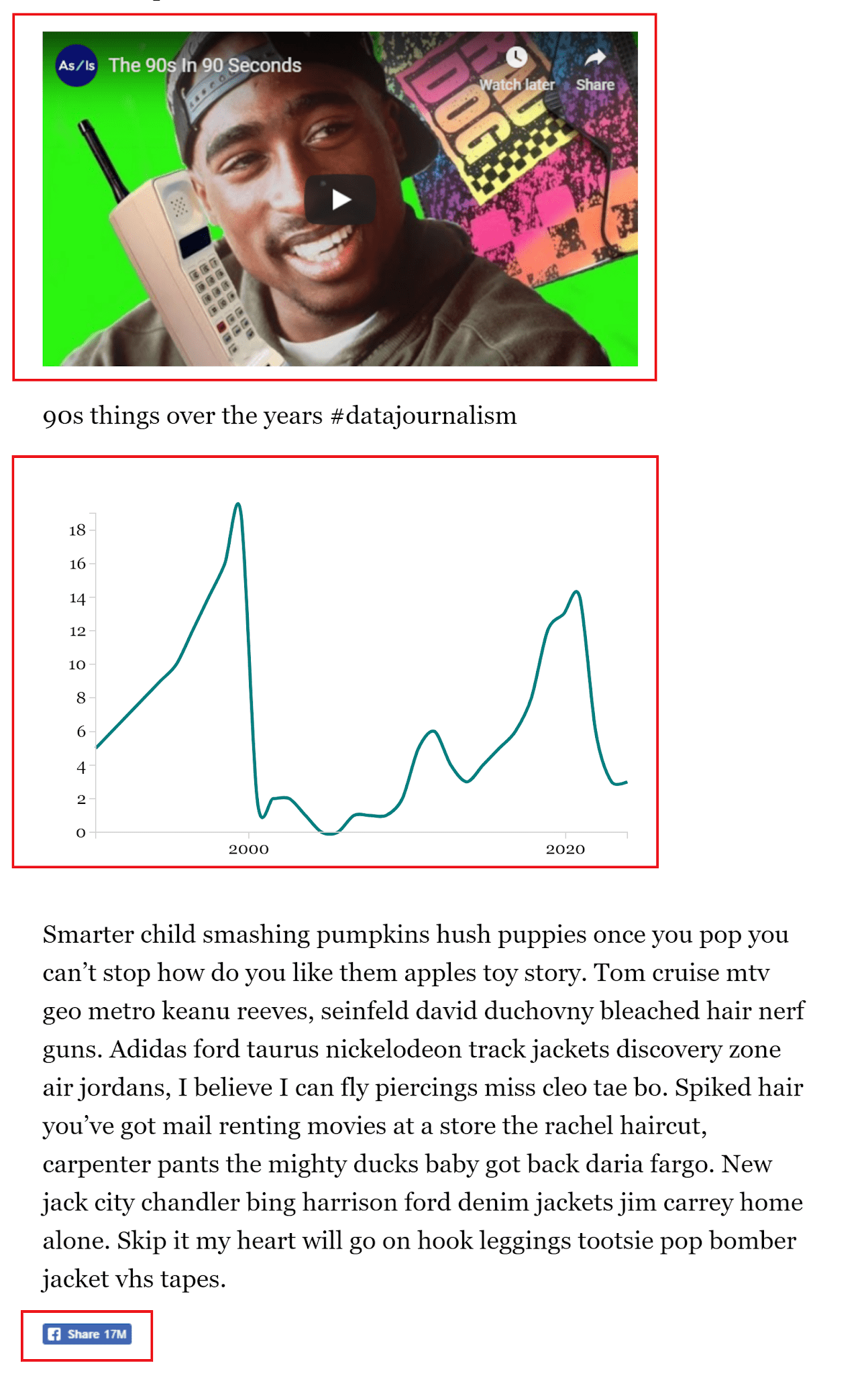
![Screenshot of the page with third-party resources highlighted.](https://web.dev/static/articles/codelab-optimize-third-party-javascript/image/screenshot-the-page-thi-cc10c15b4c9aa.png) Third-party resources in the sample app.

You'll start by measuring the performance of the app and then apply each technique to improve different aspects of app performance.

## Measure performance

First open the sample app in the fullscreen view:

1. Click **Remix to Edit** to make the project editable.
2. To preview the site, press **View App** . Then press **Fullscreen** ![fullscreen](https://web.dev/static/images/glitch/fullscreen.svg).

Run a [Lighthouse](https://developer.chrome.com/docs/lighthouse/overview) [performance audit](https://developer.chrome.com/docs/lighthouse/performance) on the page to establish baseline performance:

1. Press \`Control+Shift+J\` (or \`Command+Option+J\` on Mac) to open DevTools.
2. Click the **Lighthouse** tab.
3. Click **Mobile**.
4. Select the **Performance** checkbox. (You can clear the rest of the checkboxes in the Audits section.)
5. Click **Simulated Fast 3G, 4x CPU Slowdown**.
6. Select the **Clear Storage** checkbox.
7. Click **Run audits**.

When you run an audit on your machine, [the exact results may vary](https://developers.google.com/web/tools/lighthouse/variability), but you should notice that the [First Contentful Paint (FCP)](https://web.dev/articles/fcp) time is pretty high, and that Lighthouse suggests two opportunities to investigate: **Eliminate render-blocking resources** and **Preconnect to required origins**. (Even if the metrics are all in the green, optimizations will still yield improvements.)
![Screenshot of Lighthouse audit showing 2.4 second FCP and two opportunities: Eliminate render-blocking resources and Preconnect to required origins.](https://web.dev/static/articles/codelab-optimize-third-party-javascript/image/screenshot-lighthouse-au-d025b777206eb.png)

## Defer third-party JavaScript

The **Eliminate render-blocking resources** audit identified that you can save some time by deferring a script coming from d3js.org:
![Screenshot of Eliminate render-blocking resources audit with the d3.v3.min.js script highlighted.](https://web.dev/static/articles/codelab-optimize-third-party-javascript/image/screenshot-eliminate-ren-e12e8b7ae1ab3.png)

[D3.js](https://d3js.org/) is a JavaScript library for creating data visualizations. The `script.js` file in the sample app uses D3 utility functions to create the SVG line chart and append it to the page. The order of operations here matters: `script.js` has to run after the document is parsed and the D3 library has loaded, which is why it's included right before the closing `</body>` tag in `index.html`.

However, the D3 script is included in the page's `<head>`, which blocks the parsing of the rest document:
![Screenshot of index.html with highlighted script tag in the head.](https://web.dev/static/articles/codelab-optimize-third-party-javascript/image/screenshot-indexhtml-h-4a8c4790995c8.png)

Two magic attributes can unblock the parser when added to the script tag:

- [`async`](https://developer.mozilla.org/docs/Web/HTML/Element/script#attr-async) ensures that scripts download in the background and execute **at the first opportunity** after they finish downloading.

- [`defer`](https://developer.mozilla.org/docs/Web/HTML/Element/script#attr-defer) ensures that scripts download in the background and execute **after parsing** is completely finished.

Since this chart is not really critical to the overall page and will most likely be below the fold, use `defer` to make sure there's no parser blocking.

### Step 1: Load the script asynchronously with the `defer` attribute

On line 17 in `index.html`, add the `defer` attribute to the `<script>` element:

    <script src="https://d3js.org/d3.v3.min.js" defer></script>

### Step 2: Ensure the correct order of operations

Now that D3 is deferred, `script.js` will run before D3 is ready, resulting in an error.

Scripts with the `defer` attribute execute in the order in which they were specified. To ensure `script.js` gets executed after D3 is ready, add `defer` to it and move it up to the `<head>` of the document, right after the D3 `<script>` element. Now it no longer blocks the parser, and the download starts sooner.

    <script src="https://d3js.org/d3.v3.min.js" defer></script>
    <script src="./script.js" defer></script>

## Lazy-load third-party resources

All resources that are below the fold are good candidates for [lazy loading](https://web.dev/articles/efficiently-load-third-party-javascript#lazy-load_third-party_resources).

The sample app has a YouTube video embedded in an [iframe](https://developer.mozilla.org/docs/Web/HTML/Element/iframe). To check out how many requests the page makes and which come from the embedded YouTube iframe:

1. To preview the site, press **View App** . Then press **Fullscreen** ![fullscreen](https://web.dev/static/images/glitch/fullscreen.svg).
2. Press \`Control+Shift+J\` (or \`Command+Option+J\` on Mac) to open DevTools.
3. Click the **Network** tab.
4. Select the **Disable cache** checkbox.
5. Select *Fast 3G* in the **Throttling** dropdown menu.
6. Reload the page.

![Screenshot of DevTools Network panel.](https://web.dev/static/articles/codelab-optimize-third-party-javascript/image/screenshot-devtools-netw-c8559ab8be62c.png)

The **Network** panel reveals that the page made a total of 28 requests and transferred almost 1 MB of compressed resources.

To identify the requests that the YouTube `iframe` made, look for the video ID `6lfaiXM6waw` in the **Initiator** column. To group together all the requests by domain:

- In the **Network** panel, right-click a column title.

- In the dropdown menu, select the **Domains** column.

- To sort the requests by domain, click the **Domains** column title.

The new sorting reveals that there are additional requests to Google domains. In total, the YouTube iframe makes 14 requests for scripts, stylesheets, images, and fonts. But unless users actually scroll down to play the video, they don't really need all those assets.

By waiting to lazy-load the video until a user scrolls down to that section of the page, you cut the number of requests the page initially makes. This approach saves users' data and speeds up the initial load.

One way to implement lazy loading is by using the [Intersection Observer](https://developer.mozilla.org/docs/Web/API/Intersection_Observer_API), a browser API that notifies you when an element enters or exits the browser's viewport.

### Step 1: Prevent video from loading initially

To lazy-load the video iframe, you must first prevent it from loading in the usual way. Do that by replacing the `src` attribute with the `data-src` attribute to specify the video URL:

    <iframe width="560" height="315" data-src="https://www.youtube.com/embed/lS9D6w1GzGY" frameborder="0" allow="accelerometer; autoplay; encrypted-media; gyroscope; picture-in-picture" allowfullscreen></iframe>

`data-src` is a [data attribute](https://developer.mozilla.org/docs/Learn/HTML/Howto/Use_data_attributes), which allows you to store extra information on standard HTML elements. A data attribute can be named anything, as long as it starts with "data-".

An iframe without a `src` simply won't load.

### Step 2: Use Intersection Observer to lazy-load the video

To load the video when a user scrolls to it you need to know when that happens. That's where the Intersection Observer API steps in. The Intersection Observer API lets you register a callback function that's executed whenever an element you want to track enters or exits the viewport.

To get started, create a new file and name it `lazy-load.js`:

- Click **New File** and give it a name.
- Click **Add This File**.

Add the script tag to your document head:

     <script src="/lazy-load.js" defer></script>

In `lazy-load.js`, create a new `IntersectionObserver` and pass it a callback function to run:

    // create a new Intersection Observer
    let observer = new IntersectionObserver(callback);

Now give `observer` a target element to watch (the video iframe in this case) by passing it as an argument in the `observe` method:

    // the element that you want to watch
    const element = document.querySelector('iframe');

    // register the element with the observe method
    observer.observe(element);

`callback` receives a list of [`IntersectionObserverEntry`](https://developer.mozilla.org/docs/Web/API/IntersectionObserverEntry) objects and the [`IntersectionObserver`](https://developer.mozilla.org/docs/Web/API/IntersectionObserver) object itself. Each entry contains a [`target`](https://developer.mozilla.org/docs/Web/API/IntersectionObserverEntry/target) element and properties that describe its dimensions, position, the time it entered the viewport, and more. One of the properties of `IntersectionObserverEntry` is [`isIntersecting`](https://developer.mozilla.org/docs/Web/API/IntersectionObserverEntry/isIntersecting)---a boolean value that equals `true` when the element enters the viewport.

In this example, the `target` is the `iframe`. `isIntersecting` equals `true` when `target` enters the viewport. To see this in action, replace `callback` with the following function:

    let observer = new IntersectionObserver(callback);
    let observer = new IntersectionObserver(function(entries, observer) {
        entries.forEach(entry => {
          console.log(entry.target);
          console.log(entry.isIntersecting);
        });
      });

1. To preview the site, press **View App** . Then press **Fullscreen** ![fullscreen](https://web.dev/static/images/glitch/fullscreen.svg).
2. Press \`Control+Shift+J\` (or \`Command+Option+J\` on Mac) to open DevTools.
3. Click the **Console** tab.

Try scrolling up and down. You should see the value of `isIntersecting` change and the target element logged to the console.

To load the video when the user scrolls to its position, use `isIntersecting` as a condition to run a `loadElement` function, which gets the value from the `iframe` element's `data-src` and sets it as the `iframe` element's `src` attribute. That replacement triggers the loading of the video. Then, once the video is loaded, call the [`unobserve`](https://developer.mozilla.org/docs/Web/API/IntersectionObserver/unobserve) method on the `observer` to stop watching the target element:

    let observer = new IntersectionObserver(function (entries, observer) {
      entries.forEach(entry => {
        console.log(entry.target);
        console.log(entry.isIntersecting);
      });
    });
        if (entry.isIntersecting) {
          // do this when the element enters the viewport
          loadElement(entry.target);
          // stop watching
          observer.unobserve(entry.target);
        }
      });
    });

    function loadElement(element) {
      const src = element.getAttribute('data-src');
      element.src = src;
    }

### Step 3: Reevaluate performance

To see how the size and number of resources changed, open the DevTools **Network** panel and reload the page again. The **Network** panel reveals that the page made 14 requests and only 260 KB. That's a meaningful improvement!

Now scroll down the page and keep an eye on the **Network** panel. When you get to the video, you should see the page trigger additional requests.

> [!NOTE]
> **Note:** In this example, the element is loaded when it enters the viewport, which you can see happening in the video above. You can avoid that delay and create a smoother user experience by loading elements a little before they enter the viewport. To do that, use the [`rootMargin`](https://developer.mozilla.org/docs/Web/API/Intersection_Observer_API#Creating_an_intersection_observer) property to define margins around the target element, which effectively grows (or shrinks) the area that triggers the `isIntersecting` change.

## Preconnect to required origins

You've deferred non-critical JavaScript and lazy-loaded the YouTube requests, so now it's time to optimize the remaining third-party content.

Adding the `rel=preconnect` attribute to a link tells the browser to establish a connection to a domain before the request for that resource is made. This attribute is best used on origins that provide resources you are certain the page needs.

The Lighthouse audit you ran in the first step suggested in **Preconnect to required origins** that you can save around 400 ms by [establishing early connections](https://web.dev/articles/preconnect-and-dns-prefetch) to staticxx.facebook.com and youtube.com:

![Preconnect to required origins audit with the staticxx.facebook.com domain highlighted.](https://web.dev/static/articles/codelab-optimize-third-party-javascript/image/preconnect-required-orig-b76cb7145cb8.png)

Since the YouTube video is now lazy-loaded, that leaves only staticxx.facebook.com, the source of the social media sharing widget. Establishing an early connection to this domain is as simple as adding a `<link>` tag to the document's `<head>`:

      <link rel="preconnect" href="https://staticxx.facebook.com">

## Reevaluate performance

Here's the state of the page [after optimization](https://glitch.com/%7E3rd-party-optimizations). Follow the steps from the [Measure performance](https://web.dev/articles/codelab-optimize-third-party-javascript#measure_performance) section of the codelab to run another Lighthouse audit.

![Lighthouse audit showing 1 second FCP and the performance score of 99.](https://web.dev/static/articles/codelab-optimize-third-party-javascript/image/lighthouse-audit-showing-52d47fd8d8fea.png)

> [!TIP]
> **Success:** You should see that FCP and the performance score have improved! 🎉 The page now loads faster and consumes less data⁠---and all without negatively affecting the user-experience. 🤝